K1 Modern Driver Compatibility
K1 Modern Driver Compatibility is a patch for Star Wars: Knights of the Old Republic that restores the game’s full lighting on current graphics drivers.
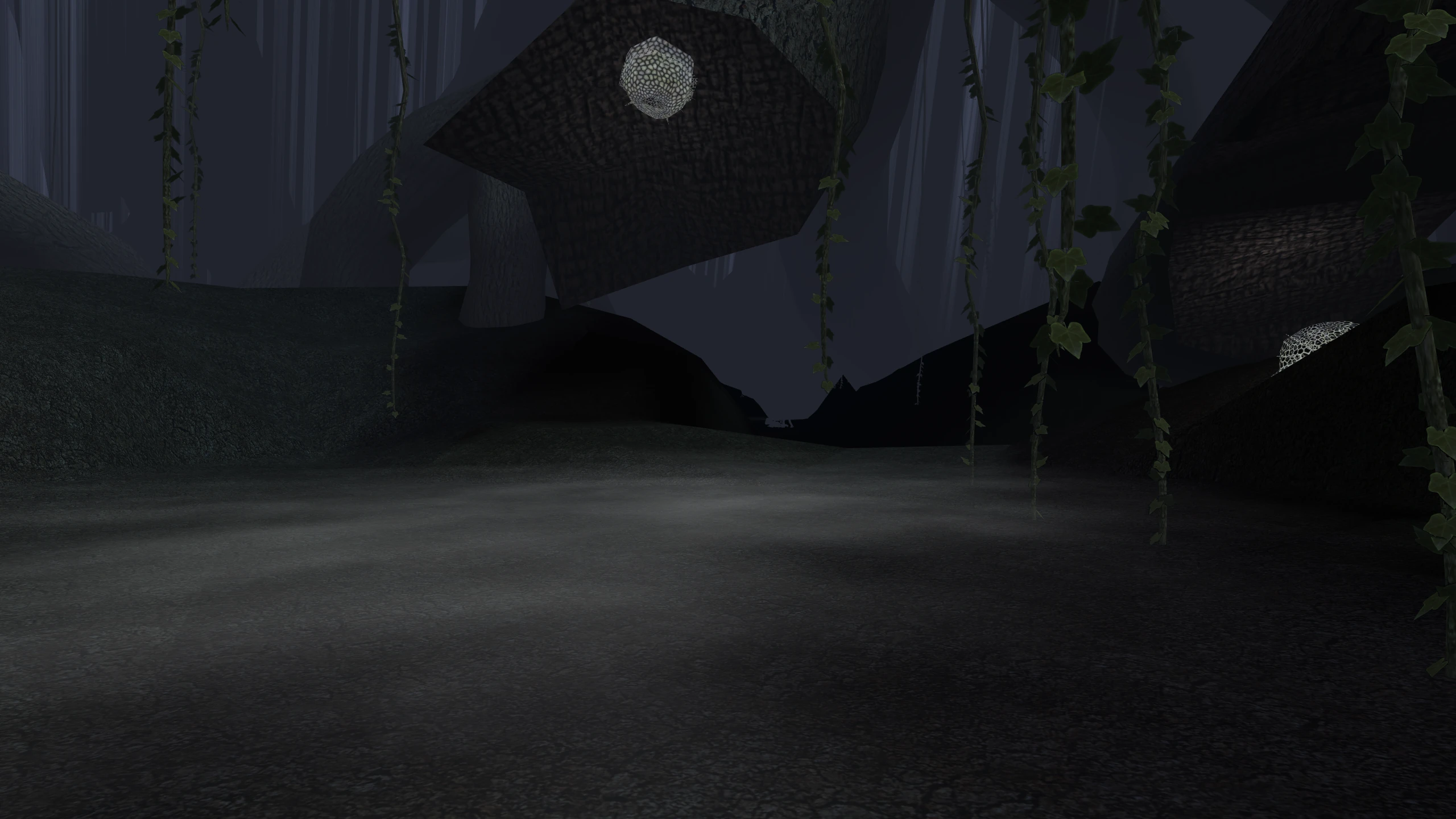
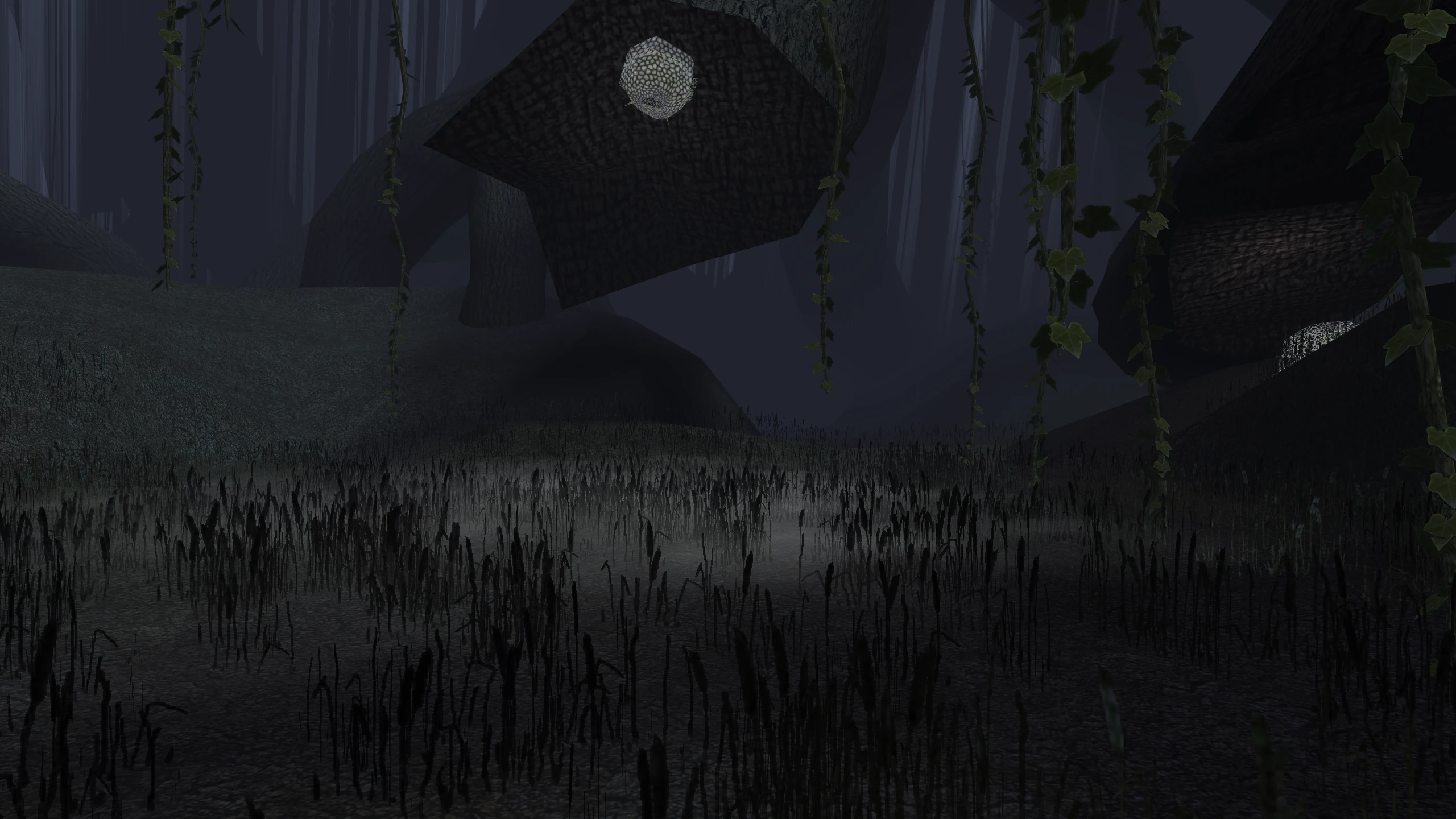
KOTOR supports two ways of shading each pixel, one from ATI and one from NVIDIA. AMD’s and
Intel’s Windows drivers offer neither, so on those drivers the game draws with much of its
lighting off: lightmapped surfaces ignore the lights in the room, shiny surfaces lose most of
their reflection, there is no bump lighting, no soft shadows, and no screen effects, and the
grass stretches into the sky. The patch rebuilds
the game’s lighting on GL_ARB_fragment_program, which AMD’s, Intel’s, and NVIDIA’s drivers
and Mesa all carry, and puts every card on that path.
Where to start
- To play, install the patch. You don’t need anything else to play.
- To see what changes, read What the patch fixes, which covers each fix with a comparison.
- If something looks wrong, send
logs/K1DriverCompat.logfrom the game folder. The log holds one session. Settings lists the settings that help narrow down a fault. - To understand the problem, read Why the game looked wrong and How the patch works.
- To make mods that use normal maps or the game’s other unused rendering, read Lighting for mods works.
- To change how the game looks, read Replacement shaders. To change the patch itself, read Building.
Installing K1 Modern Driver Compatibility
To install version 2.0.0 of the patch, you need the KotOR Patch Manager, version 0.7.2 or later.
The patch doesn’t change swkotor.exe on disk. The Patch Manager applies the patch to the game
as it starts, and you can turn the patch off in the Patch Manager.
Install the patch
- Download the zip file from the releases page, and unzip it.
- Move the
.kpatchfile out of theCopy into patches folderfolder and into the folder that your Patch Manager reads patches from. The Patch Manager’s release includes apatchesfolder for this. Move the file itself, not the folder that contains it. - Open the Patch Manager. Set Game to your
swkotor.exe, and set Patches to the folder from step 2. The patch appears in the Patch Manager’s list of patches. - Select the patch’s checkbox, and then select Apply.
- Start the game with the Patch Manager’s Launch button. On Linux, if you play through Proton, you can start the game the way you usually do instead.
You don’t need to copy anything into your game folder. The Patch Manager adds the files it needs there itself.
On Windows, the Patch Manager by default applies the patch only to a game it starts. If you start the game from Steam or a desktop shortcut instead of the Launch button, the game runs without the patch, and the game looks as if the patch does nothing. To have the patch load however you start the game, turn on the Patch Manager’s library proxy, as Load the patch however you start the game describes.
Load the patch however you start the game
On Windows, you can have the patch load whenever the game starts, from Steam, a desktop shortcut, or Launch, by using the Patch Manager’s library proxy:
- If any patches are installed, clear their checkboxes, and then select Apply. The Patch Manager lets you change this option only while no patches are installed.
- In the Options menu, select Use library proxy.
- Select the patches again, and then select Apply.
With the library proxy, the Patch Manager puts a stand-in binkw32.dll in your game folder and
renames the game’s own copy to binkw32Hooked.dll. The game loads binkw32.dll every time it
starts, and the stand-in loads the patch. On Linux, the Patch Manager always uses this method.
What appears in your game folder
The first time you run the game with the patch, the patch creates two files:
logs/K1DriverCompat.logrecords one session, and the patch replaces it each time the game starts. If something looks wrong, send this file.K1DriverCompat.inilists every setting the patch has, with an explanation of each, all commented out. You don’t need to change either file to play. For more information, see Settings.
If the Mod Options patch is installed, the patch also writes two menus for its settings into
the Mod Options folder, K1DriverCompat.toml and K1DriverCompat Troubleshooting.toml. They
appear in the game’s options screen.
The first run also turns on soft shadows and the screen effects in the game’s own graphics
options. The Steam release’s settings file has soft shadows off, and the game’s options menu
saved both off on cards that the unpatched game judged unable to run them. The patch does this
only on the run that creates K1DriverCompat.ini. If you turn either option off afterwards, it
stays off unless you delete that file.
Troubleshooting
The patch needs a newer Patch Manager
Cause: version 2.0.0 and later of the patch passes values from the game’s registers, and fixed values, to its hooks. The Patch Manager supports both from version 0.7.2, and earlier versions can’t install those hooks.
Solution: check the Patch Manager’s version, and update it to 0.7.2 or later.
Uninstall the patch
In the Patch Manager, clear the patch’s checkbox, and then select Apply. The Patch Manager removes the files it added.
Some things stay behind. logs/K1DriverCompat.log and K1DriverCompat.ini remain in your game
folder, and so do the two menus in Mod Options if the patch wrote them. You can delete all of
them. Soft shadows and the screen effects stay on in the game’s
graphics options until you turn them off there.
Compatibility
The patch works with version 1.03 of the game as GOG and Steam ship it. It also works with the
1.03 executable that CD copies run with the common no-CD crack.
The patch includes the separate cube map fix and soft shadow fix. Don’t install either of them alongside this patch.
Installing without the Patch Manager
If the KotOR Patch Manager accepts your game, use
the standard install instead.
It leaves swkotor.exe unchanged on disk, and you can turn the patch off in the Patch Manager.
This install is for one case: another tool has already modified your swkotor.exe, so the Patch
Manager doesn’t recognise it and refuses to patch it. Examples include an executable patched to
use more memory, patched for a widescreen resolution, or unpacked from a store’s wrapper. This
install checks only the places in the game that the patch changes, so other modifications don’t
stop it.
The install adds two files to your game folder and renames nothing. If your game folder already
has a dinput8.dll, copying replaces it. If that file is another mod’s copy of Ultimate ASI
Loader, you can keep it and copy only the .asi file.
Install the patch
- Download the standalone zip file from the releases page, and unzip it.
- Copy both files from the
Copy into game folderfolder into your game folder, which is the folder that containsswkotor.exe. The files aredinput8.dllandk1-modern-driver-compatibility.asi. - On Linux, set the environment variable that the next section describes. On Windows, skip this step.
- Start the game the way you usually do, for example from Steam, a desktop shortcut, or Proton.
You don’t need to open a manager or configure anything.
On Linux, through Wine or Proton
On Linux, this step is required. Wine includes its own dinput8.dll and uses it in place of the
one in your game folder, so unless you tell Wine otherwise, the game starts without the patch.
Set this environment variable when you start the game:
WINEDLLOVERRIDES="dinput8=n,b"
For a Steam game, add it to the game’s launch options, followed by %command%:
WINEDLLOVERRIDES="dinput8=n,b" %command%
In Lutris or Heroic, use the DLL overrides screen instead: add dinput8 and set it to
native, builtin. This setting tells Wine to load the file in the game folder first, and to
use its own only if that file is missing.
Check that the patch is working
The first time you run the game with the patch, the patch creates logs/K1DriverCompat.log in
your game folder. Look for these two lines, in this order. Each line in the log also starts with
the time since the game started and a level, such as [INFO].
hooks installed=21/21 waited=0.000
capability ati_fragment_shader=accepted
- The
hooks installedline means that the patch changed the game. Both numbers must be the same. - The
capabilityline means that the game reached the patch in time.
If the log has the first line but not the second, and you haven’t set
decline = on, the patch loaded too late to take effect. Report it, and include
the log.
If the log says hooks nothing matched, the patch couldn’t change any place in the game. The log
gives the reason for each place. If a place holds bytes the patch didn’t expect, your executable
isn’t one that this patch can change.
Troubleshooting
The game starts, but no log appears
Cause: the game didn’t load the patch. This usually has one of two causes:
- On Linux, the
WINEDLLOVERRIDESenvironment variable isn’t set. - On Windows,
dinput8.dllisn’t in the same folder asswkotor.exe, for example because it’s still in the folder from the zip file.
Solution: on Linux, set the environment variable as the preceding section describes. On
Windows, move dinput8.dll and k1-modern-driver-compatibility.asi into the folder that
contains swkotor.exe.
The patch doesn’t take effect with the standard install also active
Cause: this install and the standard install change the same places in the game. Whichever runs second finds those places already changed, and doesn’t apply.
Solution: use only one of the two installs.
What appears in your game folder
The first time you run the game with the patch, the patch creates the same two files as the standard install:
logs/K1DriverCompat.logrecords one session, and the patch replaces it each time the game starts. If something looks wrong, send this file.K1DriverCompat.inilists every setting the patch has, with an explanation of each, all commented out. You don’t need to change either file to play. For more information, see Settings.
The first run also turns on soft shadows and the screen effects in the game’s own graphics
options. The Steam release’s settings file has soft shadows off, and the game’s options menu
saved both off on cards that the unpatched game judged unable to run them. The patch does this
only on the run that creates K1DriverCompat.ini. If you turn either option off afterwards, it
stays off unless you delete that file.
Uninstall the patch
Delete dinput8.dll and k1-modern-driver-compatibility.asi from your game folder.
Two things stay behind. logs/K1DriverCompat.log and K1DriverCompat.ini remain in your game
folder, and you can delete them. Soft shadows and the screen effects stay on in the game’s
graphics options until you turn them off there.
Compatibility
This install works with version 1.03 of the game as GOG and Steam ship it, and with the 1.03
executable that CD copies run with the common no-CD crack. It also works with copies that another
tool has already modified, as long as that tool didn’t change one of the places this patch
changes. The log names any such place.
The patch includes the separate cube map fix and soft shadow fix. Don’t install either of them alongside this patch.
dinput8.dll is Ultimate ASI Loader, which isn’t part of this patch. Its licence terms, and
those of everything built into it, are in THIRD-PARTY-NOTICES.
What the patch fixes
This page describes each problem the patch fixes: what you see without the patch, what causes it, and what the patch changes. Why the game looked wrong explains the cause these problems share.
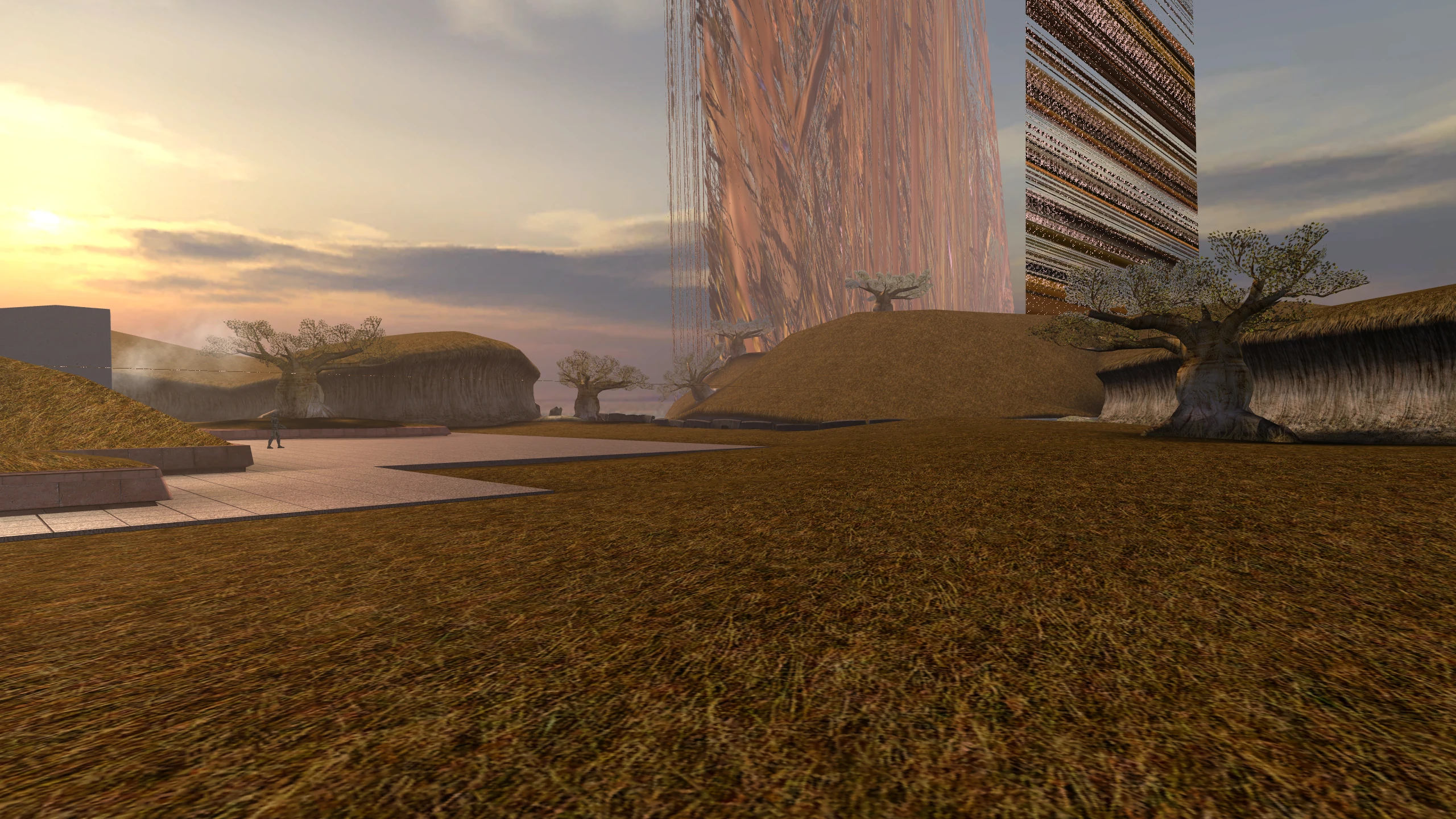
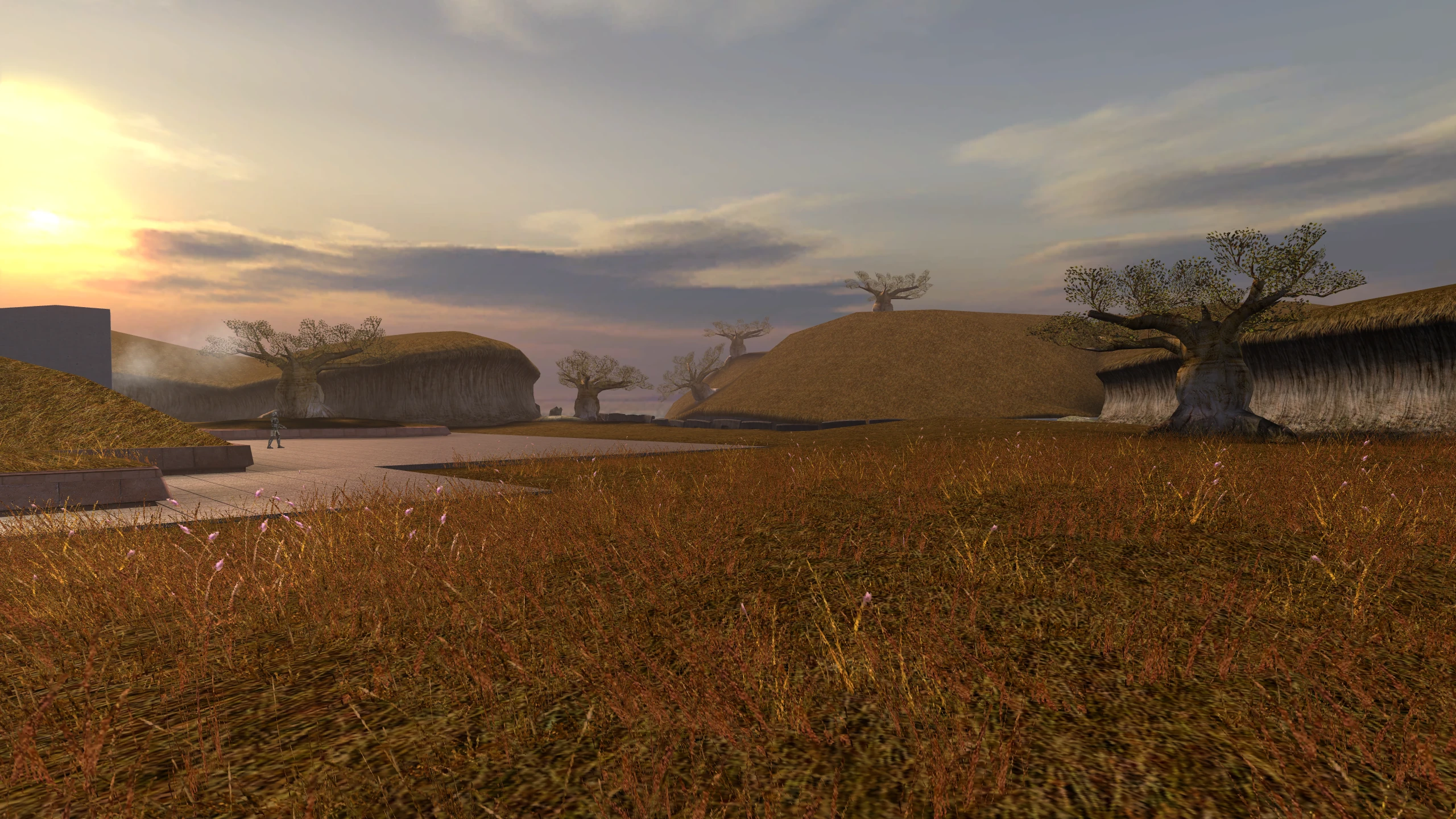
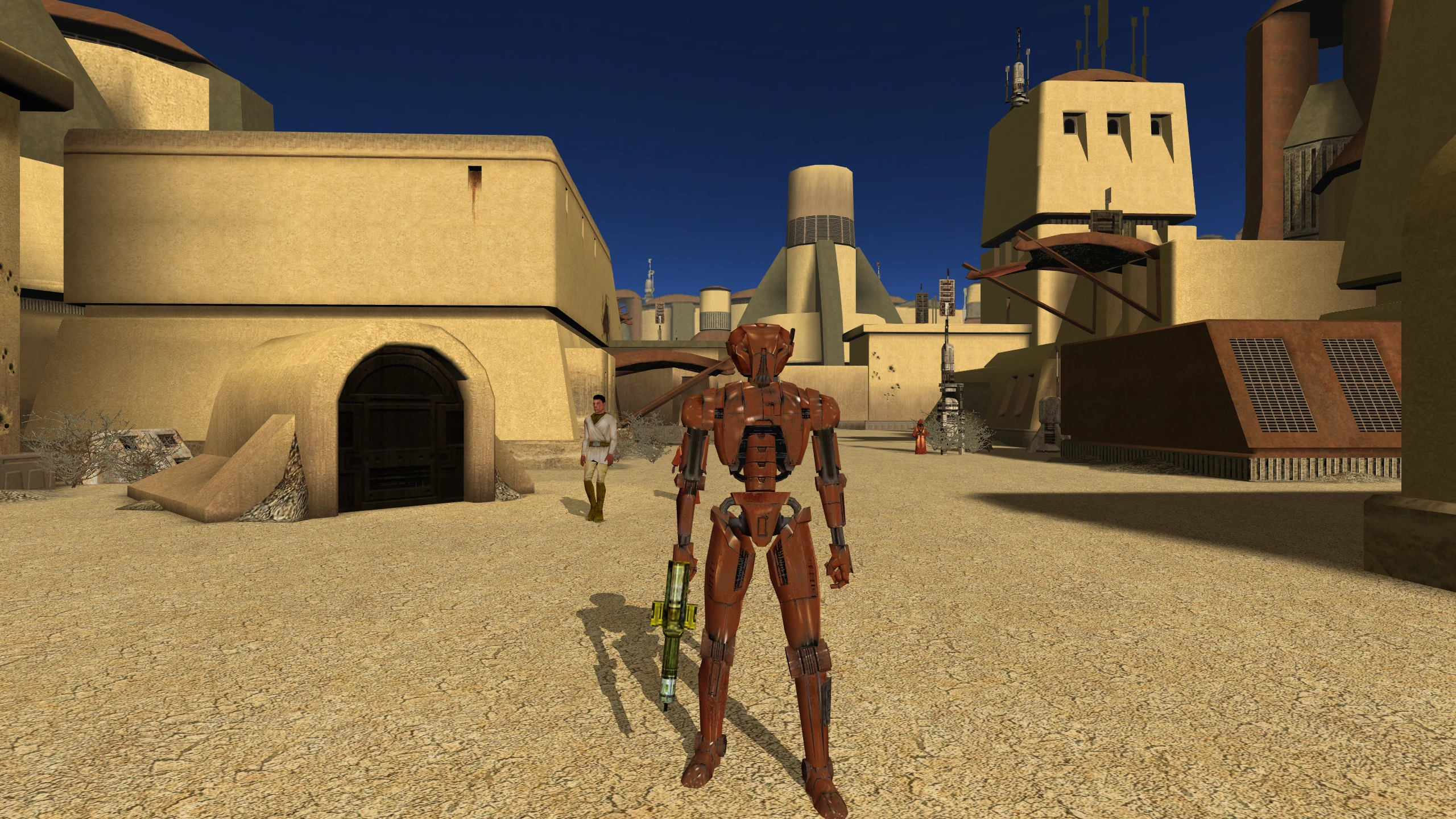
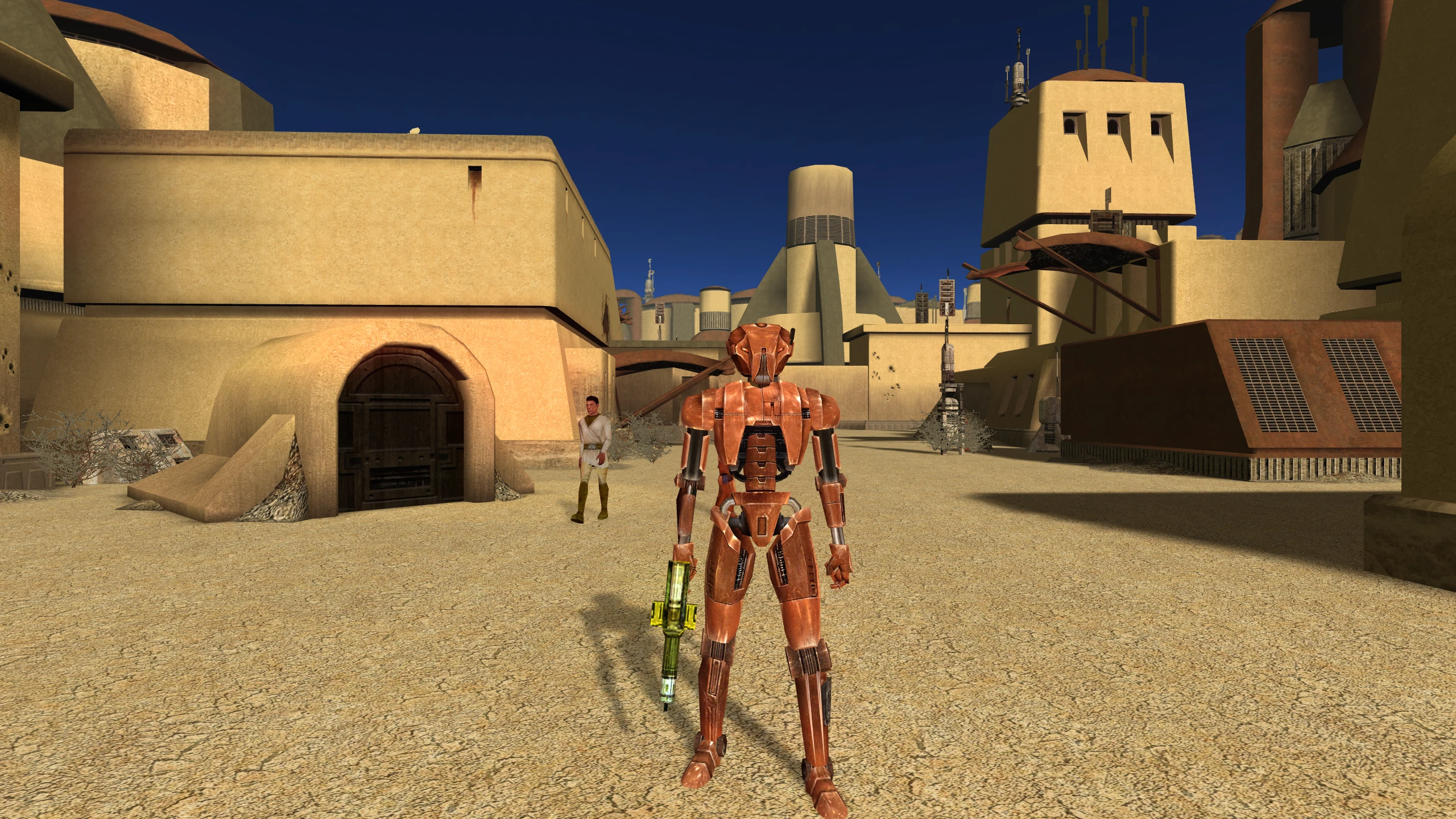
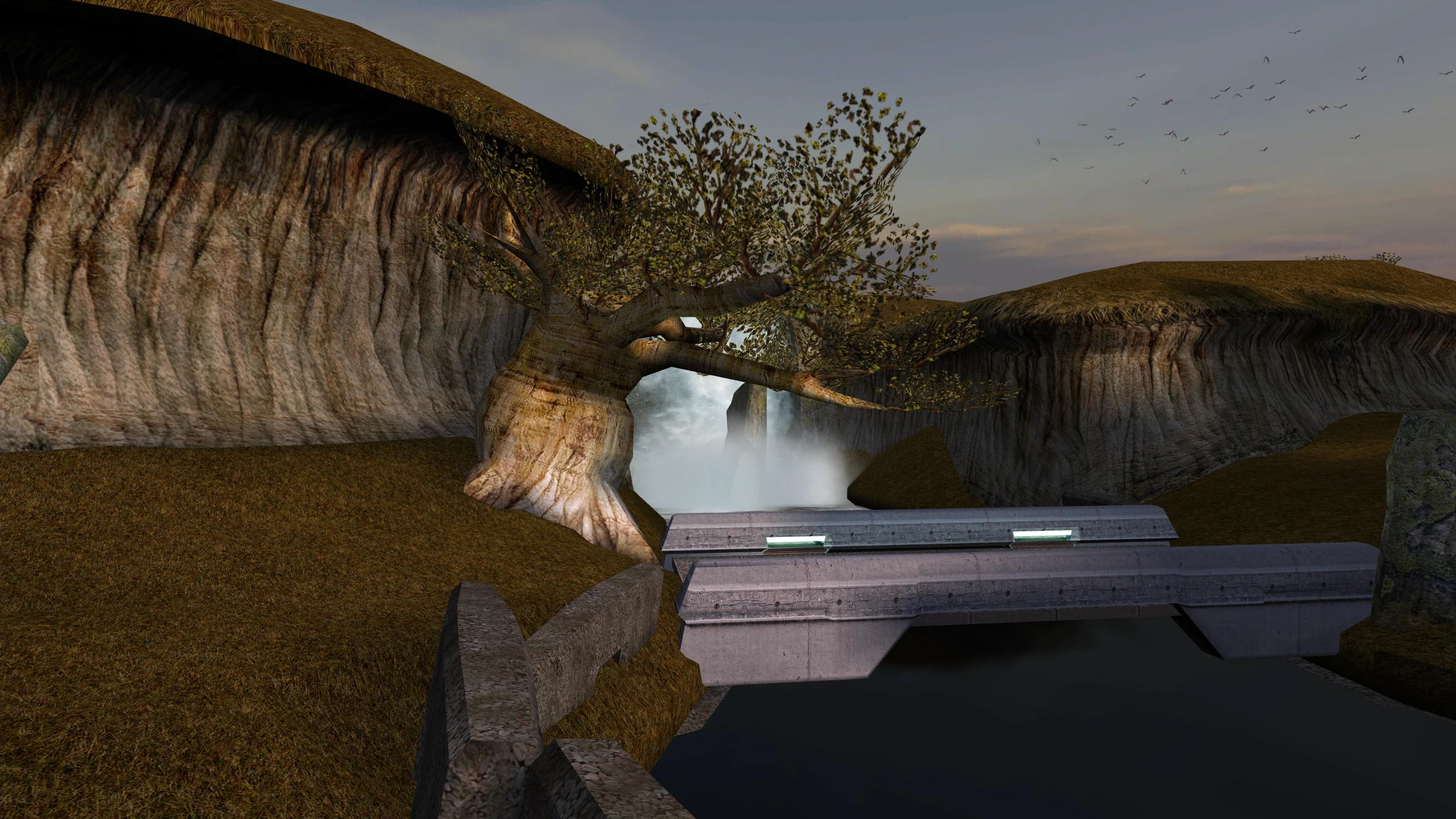
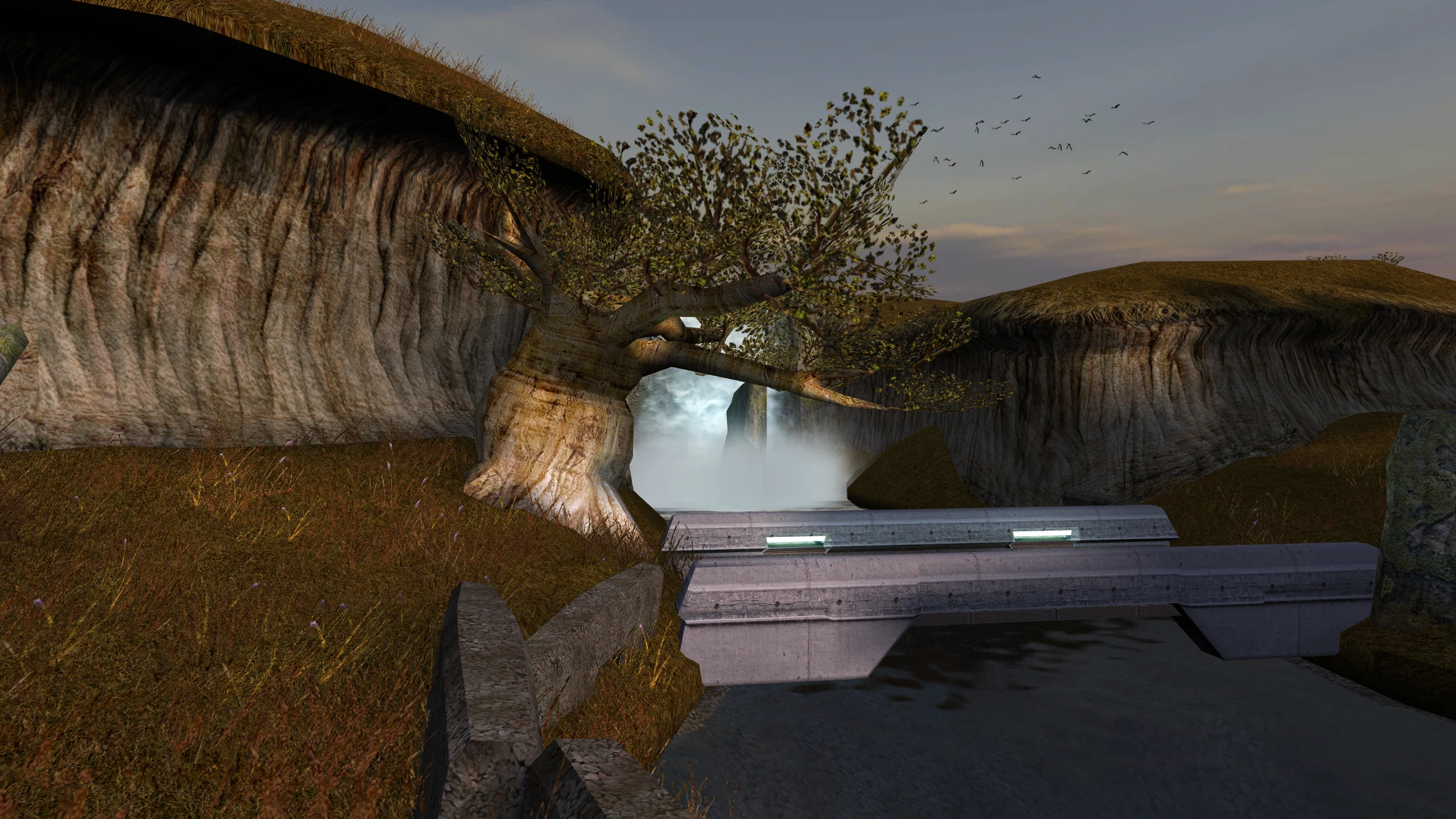
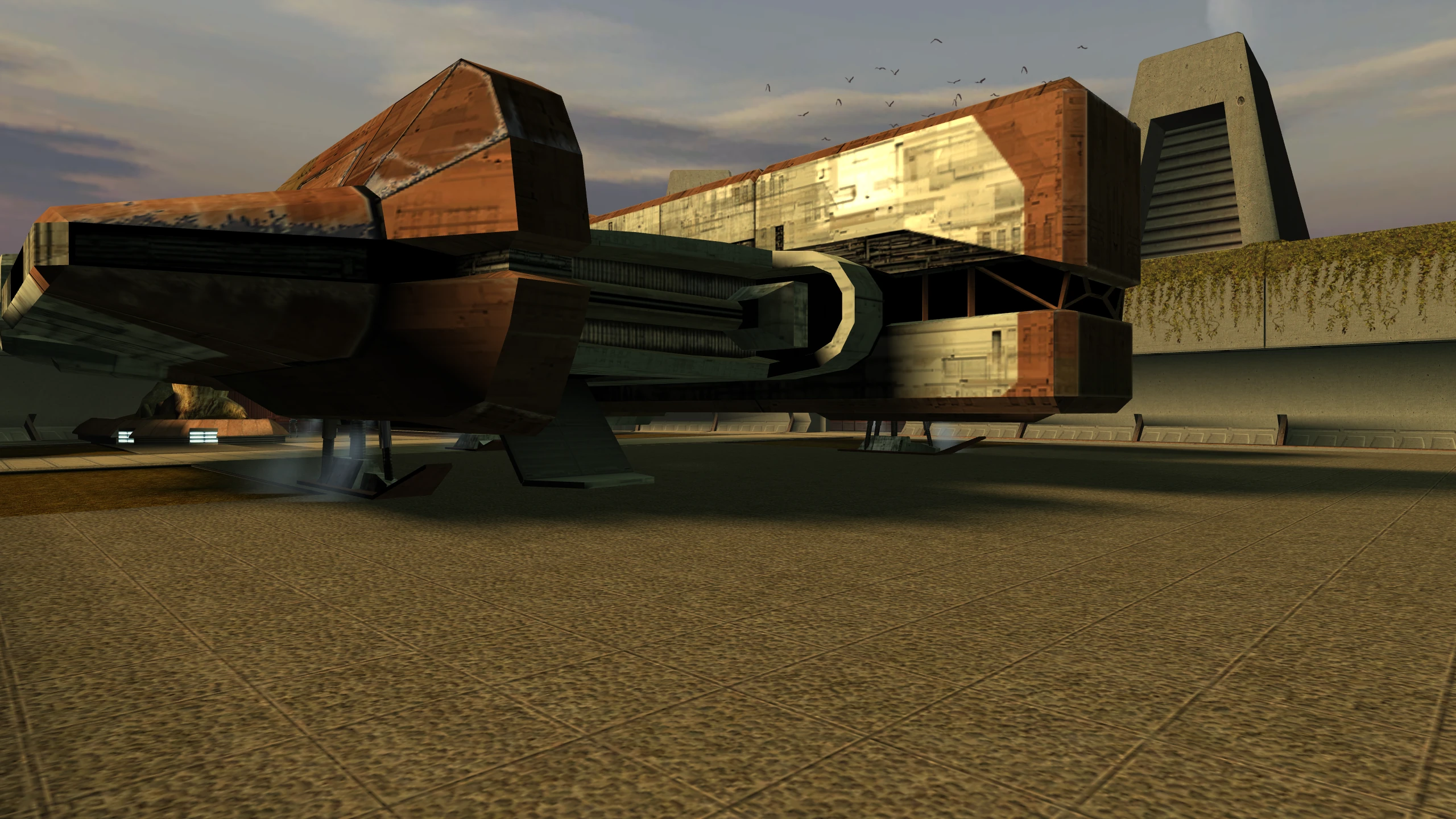
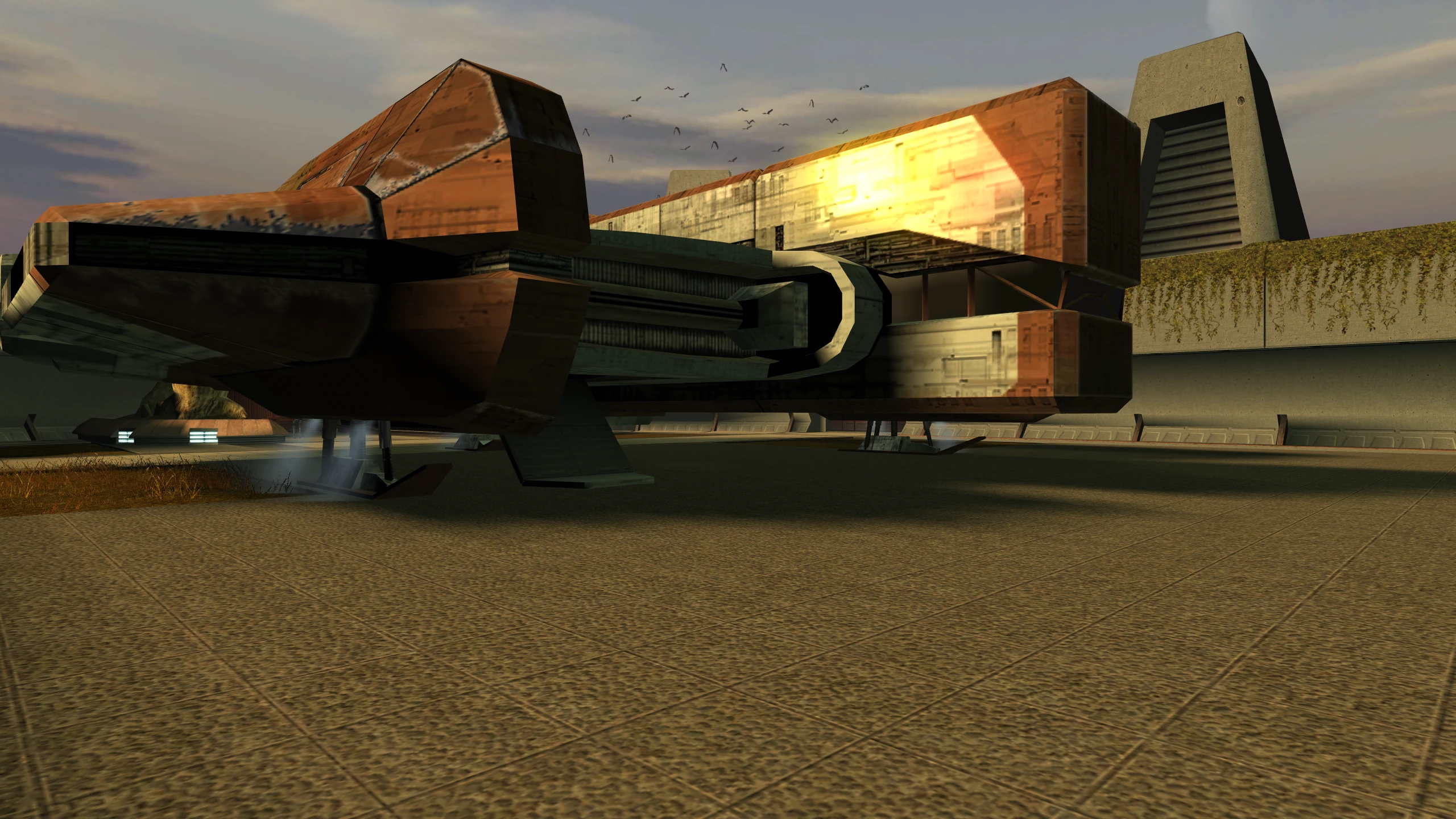
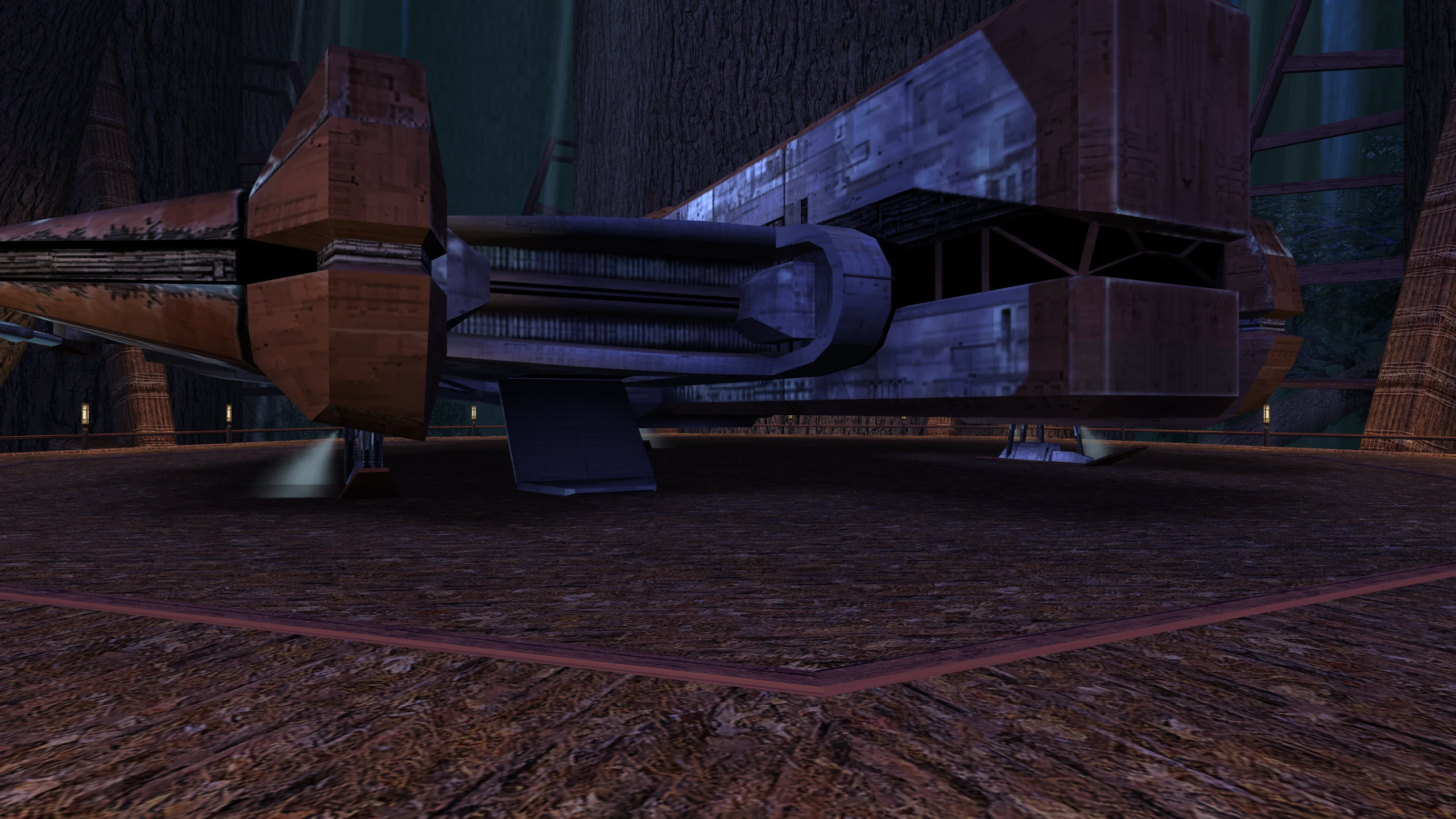
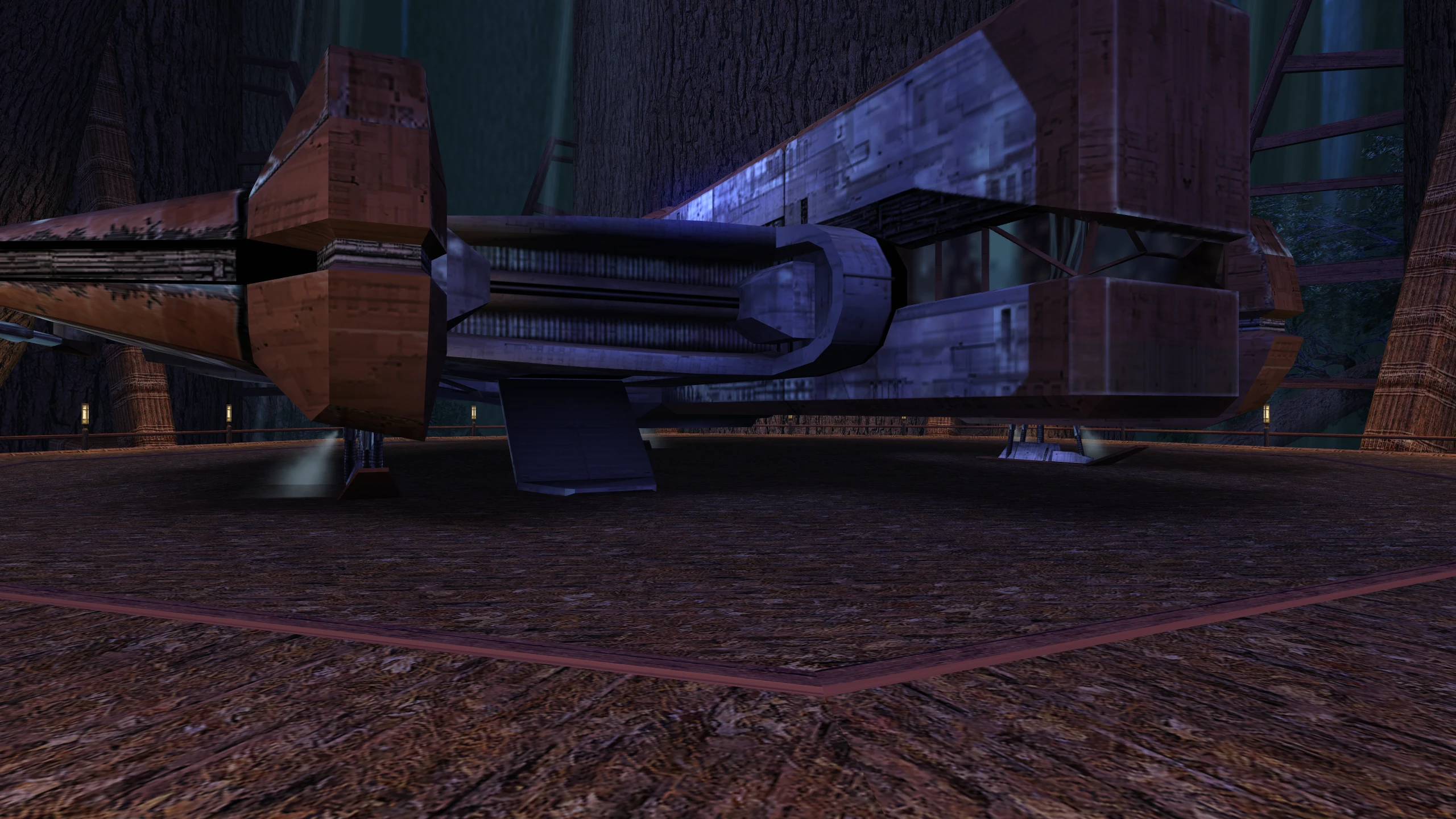
Each comparison shows the same view twice. Drag the divider, or use the arrow keys, to compare the two, and select Enlarge to see them at full size. Both sides were taken on Mesa, with the same widescreen patches installed. For the side without the patch, Mesa was set to hide ATI’s fragment shaders, so the game found neither of its shading methods and took the path it takes on a driver that offers neither.
Grass stays on the ground
Without the patch: blades of grass stretch from the ground into the sky, in long streaks across the view, or are missing entirely depending on what is in memory.
Cause: the game has three ways to draw grass. Two of them tell the graphics card to read the positions of the blades from the wrong place in memory. On a driver that offers neither of the game’s shading methods, the game uses one of those two.
With the patch: the game uses the third way for textured grass, which reads the right place, so the grass stands on the ground. For the exact cause, see Why the grass breaks.
Lights reach lightmapped walls and floors
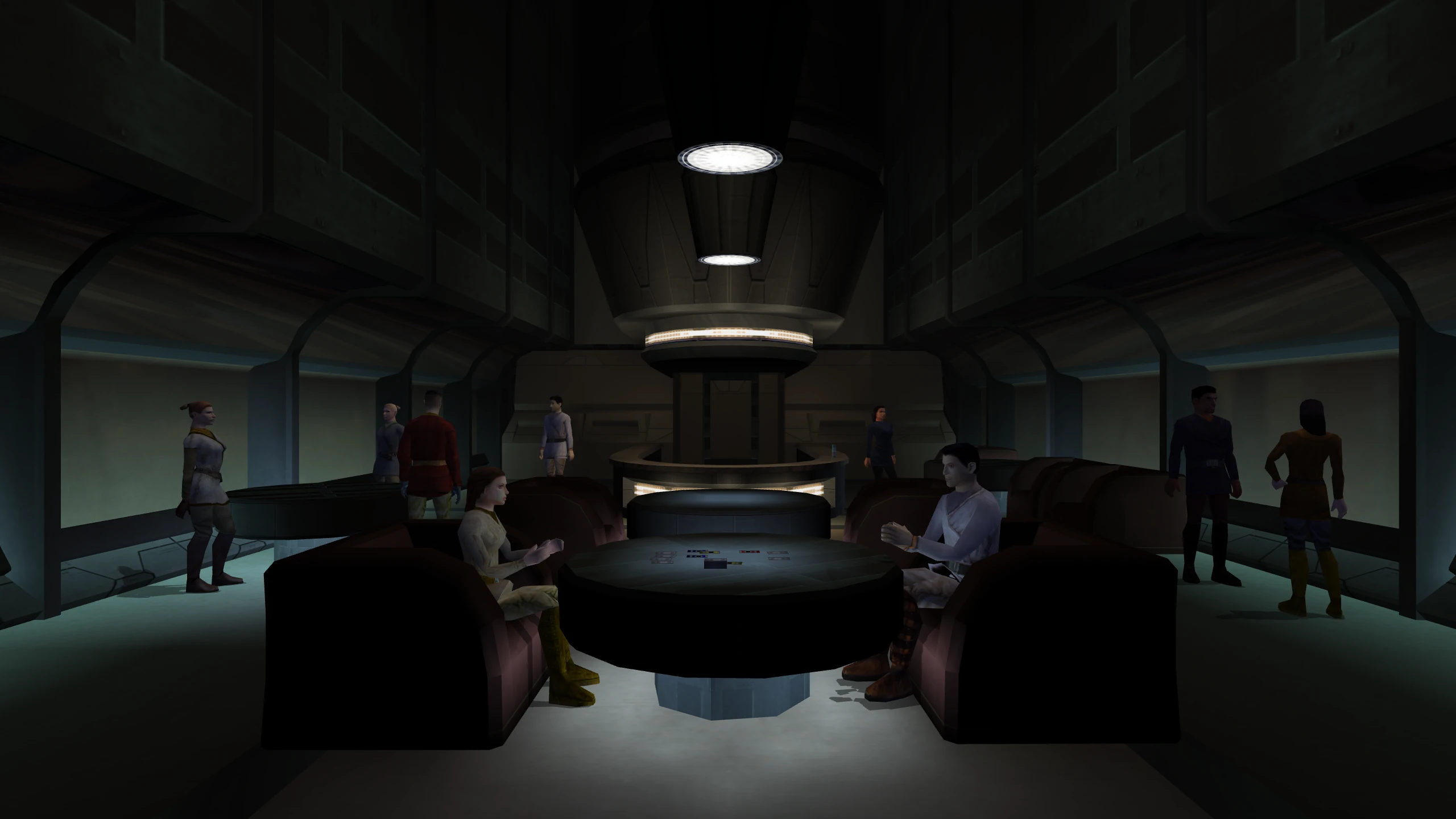
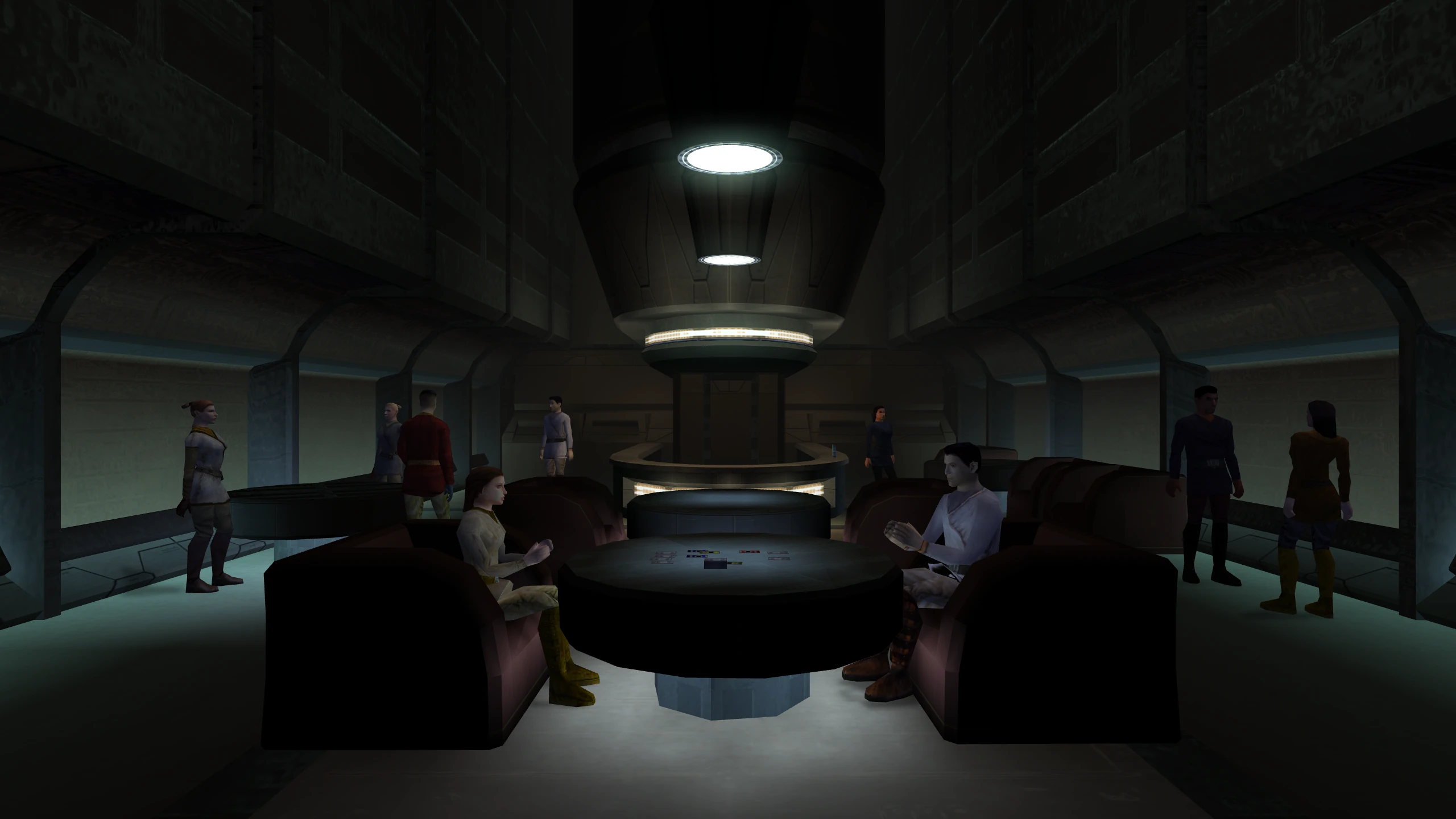
Without the patch: walls and floors show only their lightmap, which is the lighting stored in the level when the level was built. The lights in the room don’t affect them.
Cause: on the path the game uses when it finds neither shading method, the game turns lighting off while it draws a lightmapped surface.
With the patch: the lights in the room add to the lightmap.
Reflections are restored
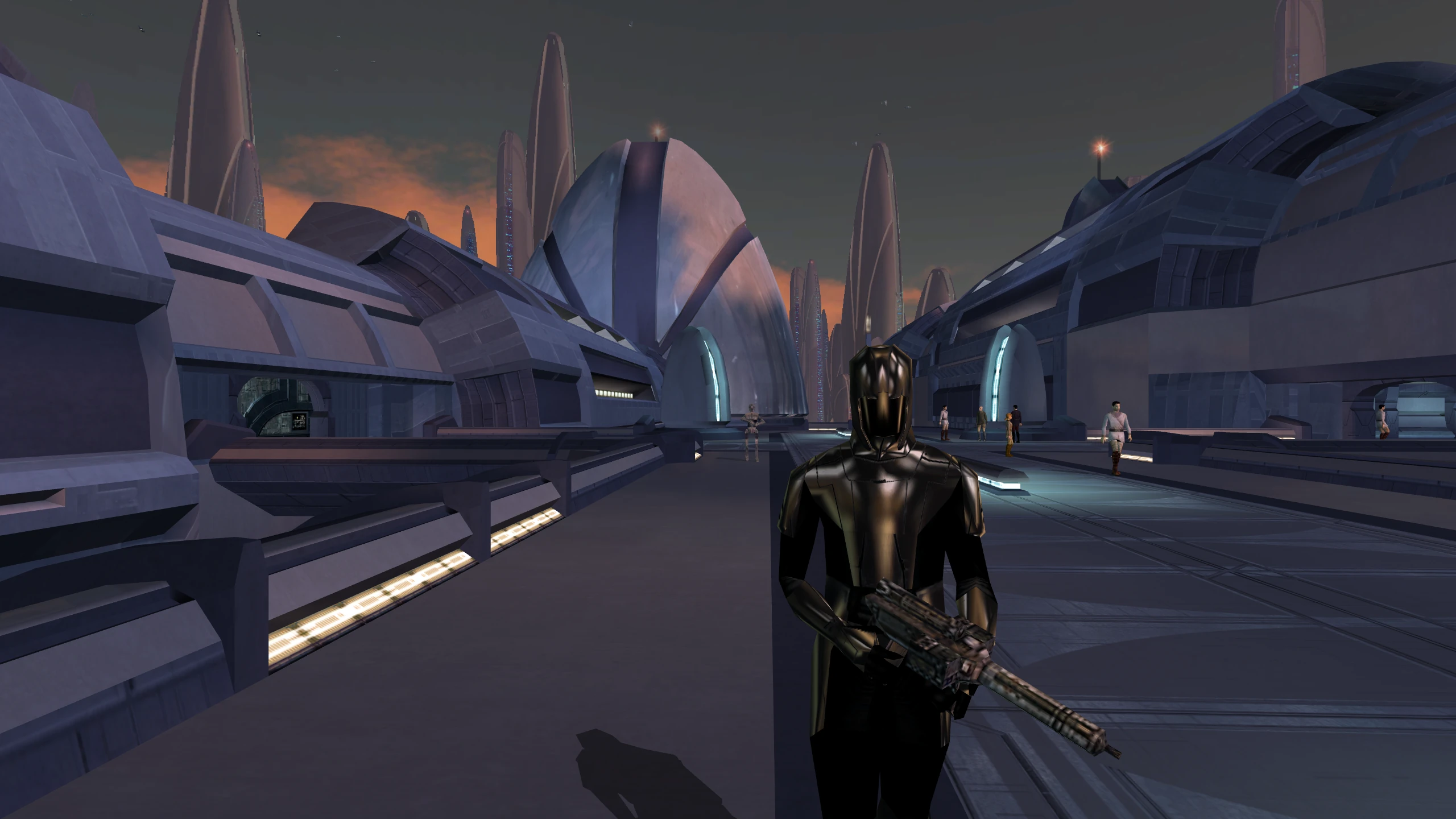
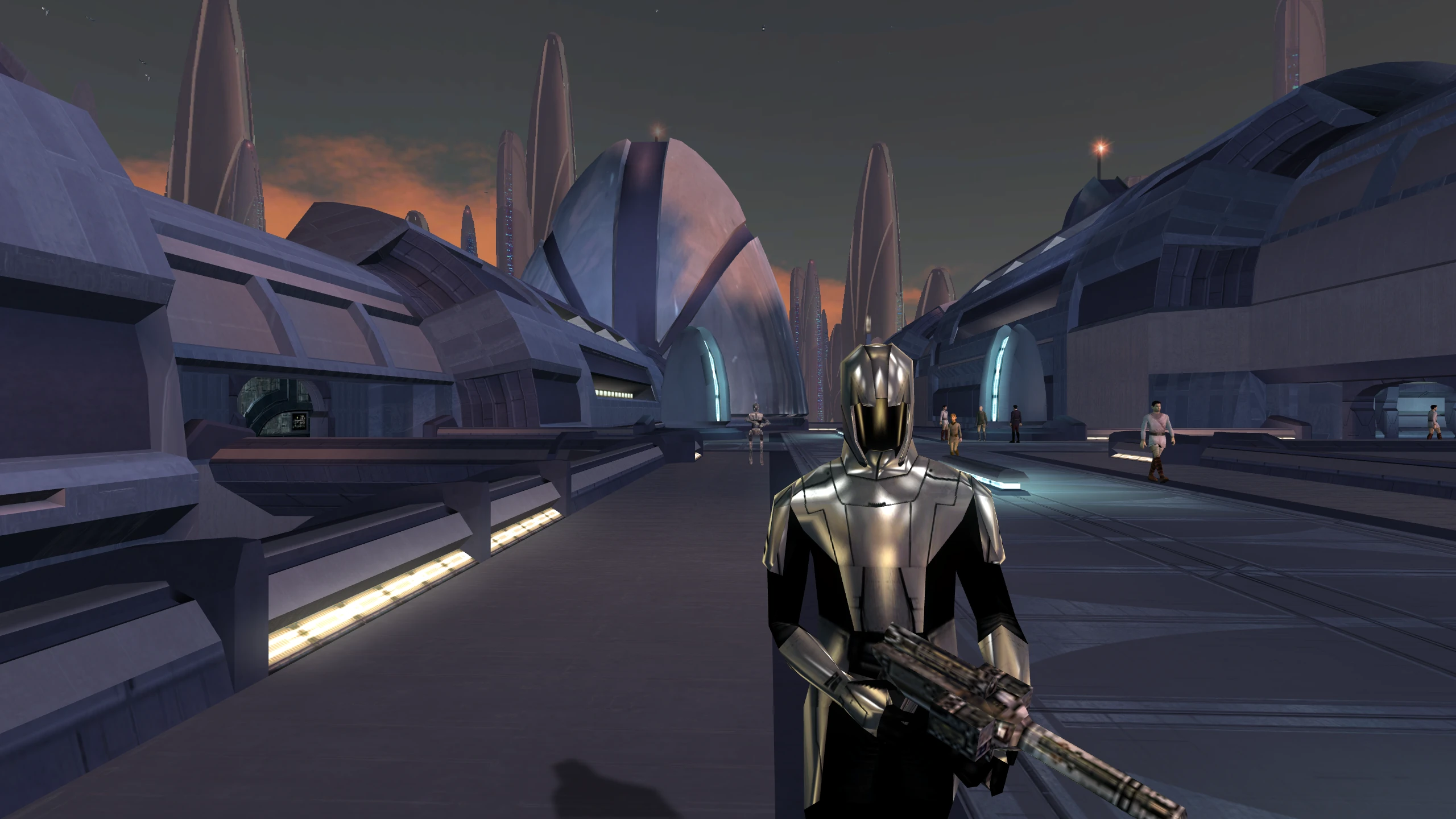
Without the patch: shiny surfaces, such as armour, droids, water, and the Ebon Hawk’s cockpit glass, lose most of their reflection. The Ebon Hawk comparisons in Glow and screen effects appear also show the cockpit glass.
Cause: the game draws its reflections in one pass with one of its two shading methods. On a driver that offers neither, it falls back to an older method that draws each shiny surface twice without per-pixel shading, once for the reflection and once for its texture, and blends the two.
With the patch: the game draws its reflections in one pass on every card.
Cube maps on Intel
On Intel’s Windows driver, the game also loses its best reflections a second way. It draws them
with cube maps, and it looks for cube maps under the name GL_EXT_texture_cube_map. Intel’s
Windows driver lists cube maps only as GL_ARB_texture_cube_map, which is the same feature under
a newer name. The game concludes that the card has no cube maps and uses sphere maps, an older
and simpler kind of reflection.
The patch makes the game look for the newer name, which Intel’s driver lists, and which Mesa also lists. Mesa lists the older name too, so the comparisons on this page, which were taken on Mesa, don’t show this fix.
Technical details
RenderEnvironmentMapped dispatches modes 0x13 and 0x14 only when
AurOnePassEnvMapAvailable returns true, which requires AurBumpMapAvailable. Otherwise it
draws the surface twice through the fixed function stage: once with the environment map and
generated texture coordinates, and once with the material’s own texture, blending the two passes.
environmentMapDest chooses which pass comes first and how they blend.
Creatures get bump lighting
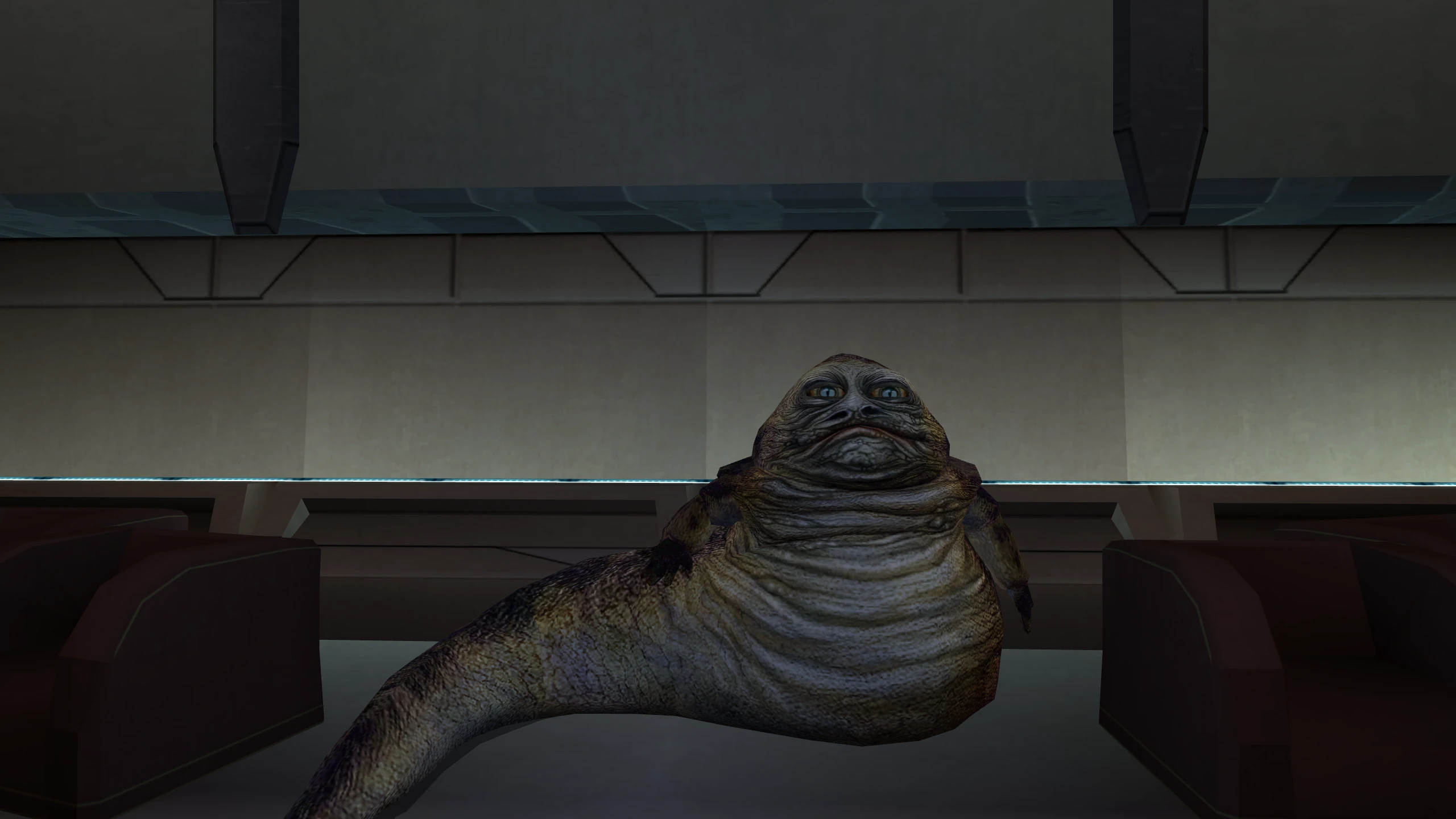
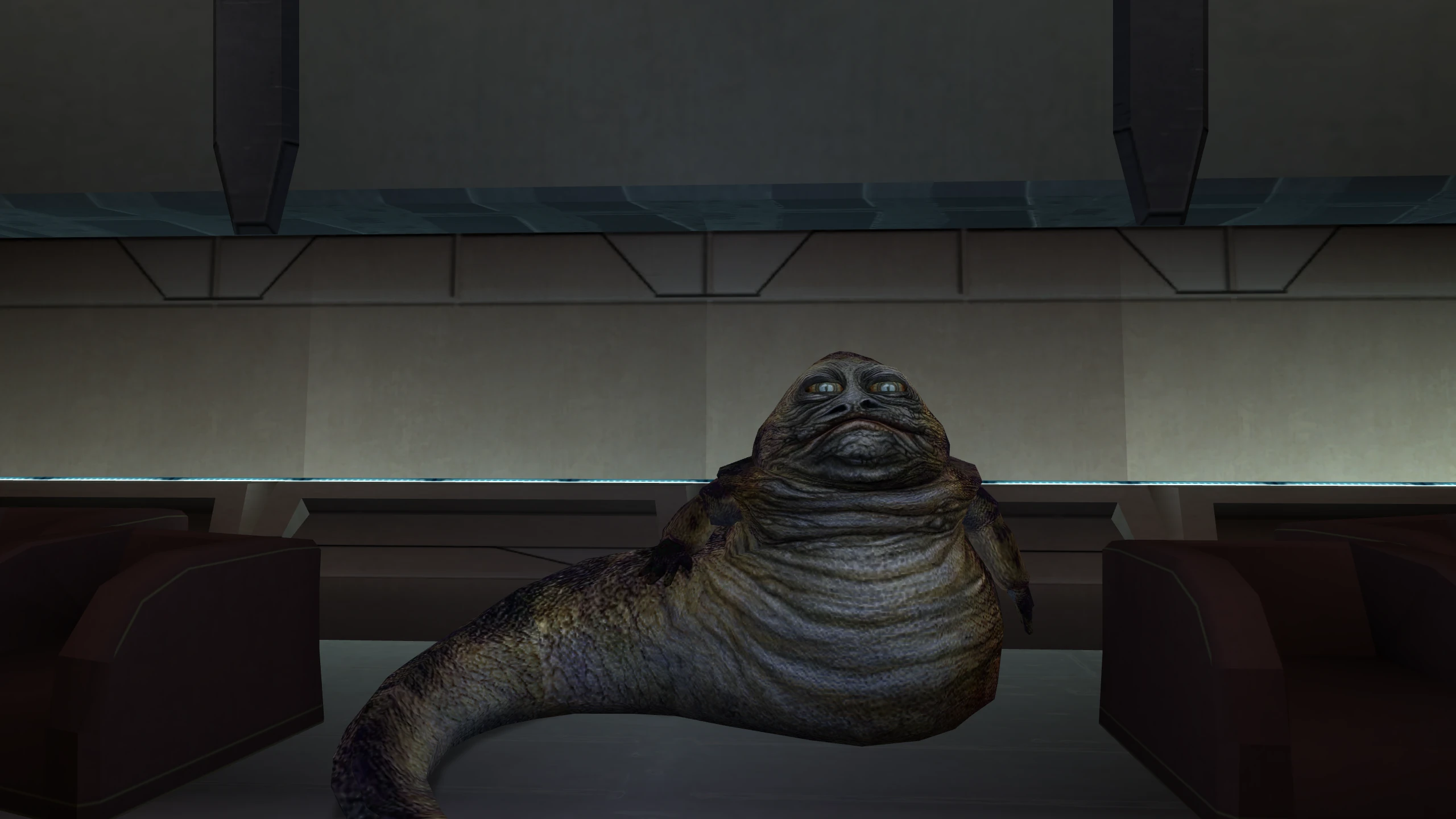
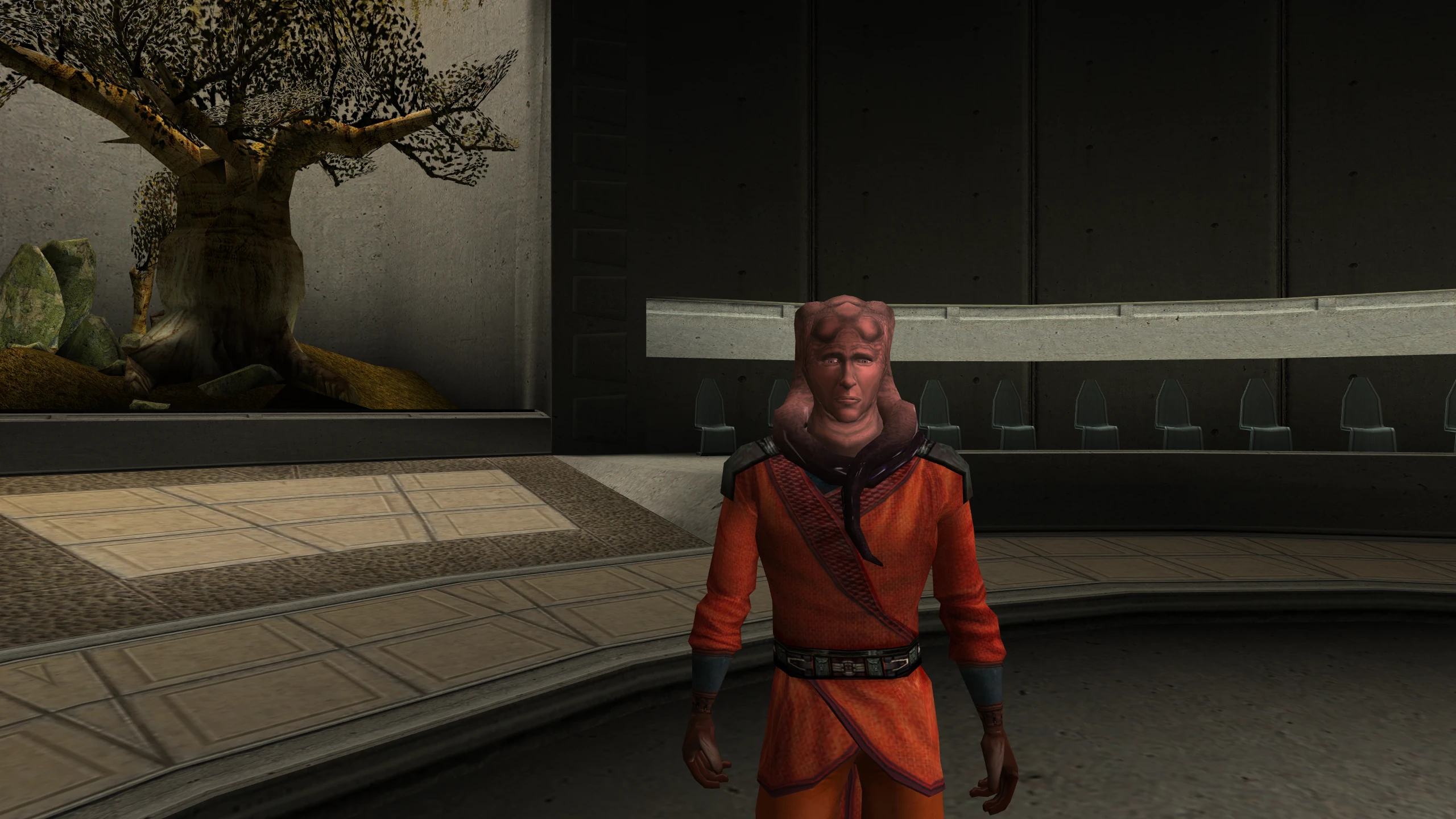
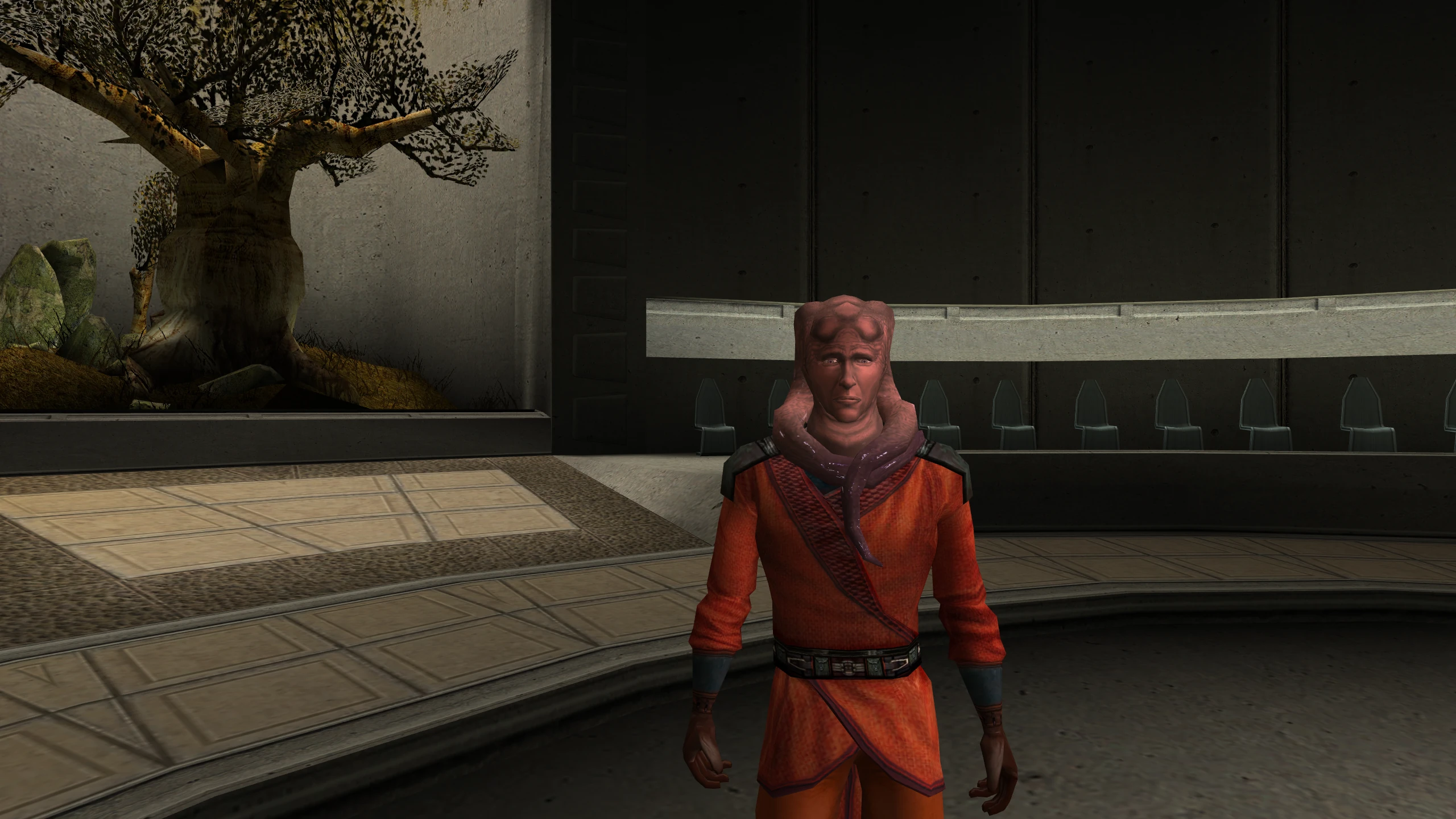
Without the patch: bump mapped creatures, such as the Hutts, are drawn without per-pixel lighting.
Cause: bump lighting lights each point of a surface according to the direction that point faces, which a bump map stores. It needs per-pixel shading, so on a driver that offers neither of the game’s methods, the game draws no bump lighting at all. Even with a method, the game draws the Hutts and the Rancor with bump lighting only when it uses NVIDIA’s. On every other card, including ATI’s, it skips that branch.
With the patch: the game takes that branch on every card. While one of these creatures fades out, the patch sends it down the game’s plain branch instead, because the bump branches can’t fade.
Lighting for mods works
Without the patch: on every card, NVIDIA’s included, three of the game’s lighting routes don’t work: bump lighting on lightmapped surfaces, normal maps, and reflective skins with a flat reflection map. The shipped game barely uses them, but mods can.
Cause: bugs in the game. The first and third use vertex programs that no driver accepts in the form the game builds them, so those surfaces draw nothing. The switch for normal maps is compiled to always answer no, and the game loads TGA normal maps with two colour channels swapped.
With the patch: all three work. For details, see How the patch works.
Shadows are soft
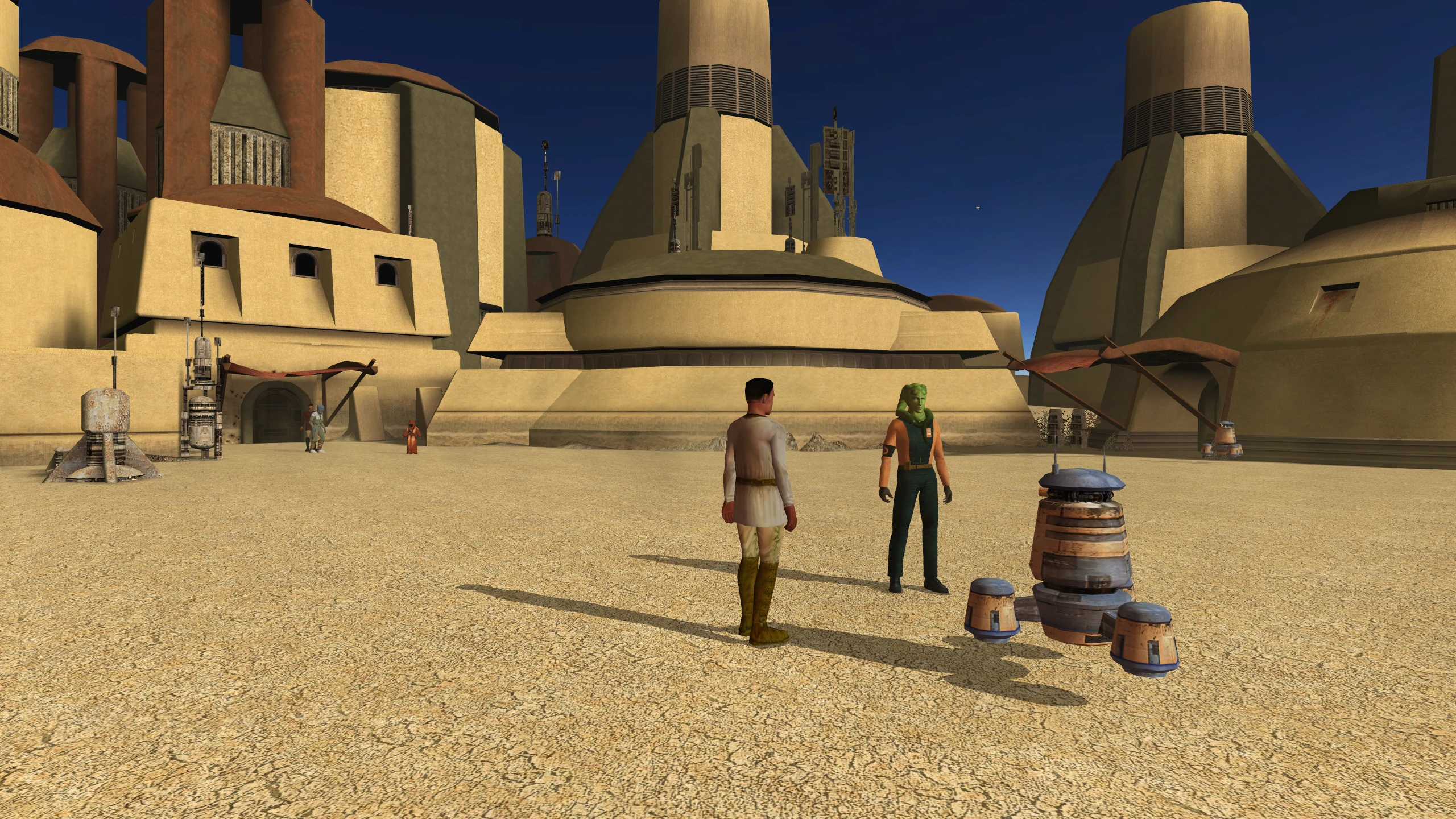
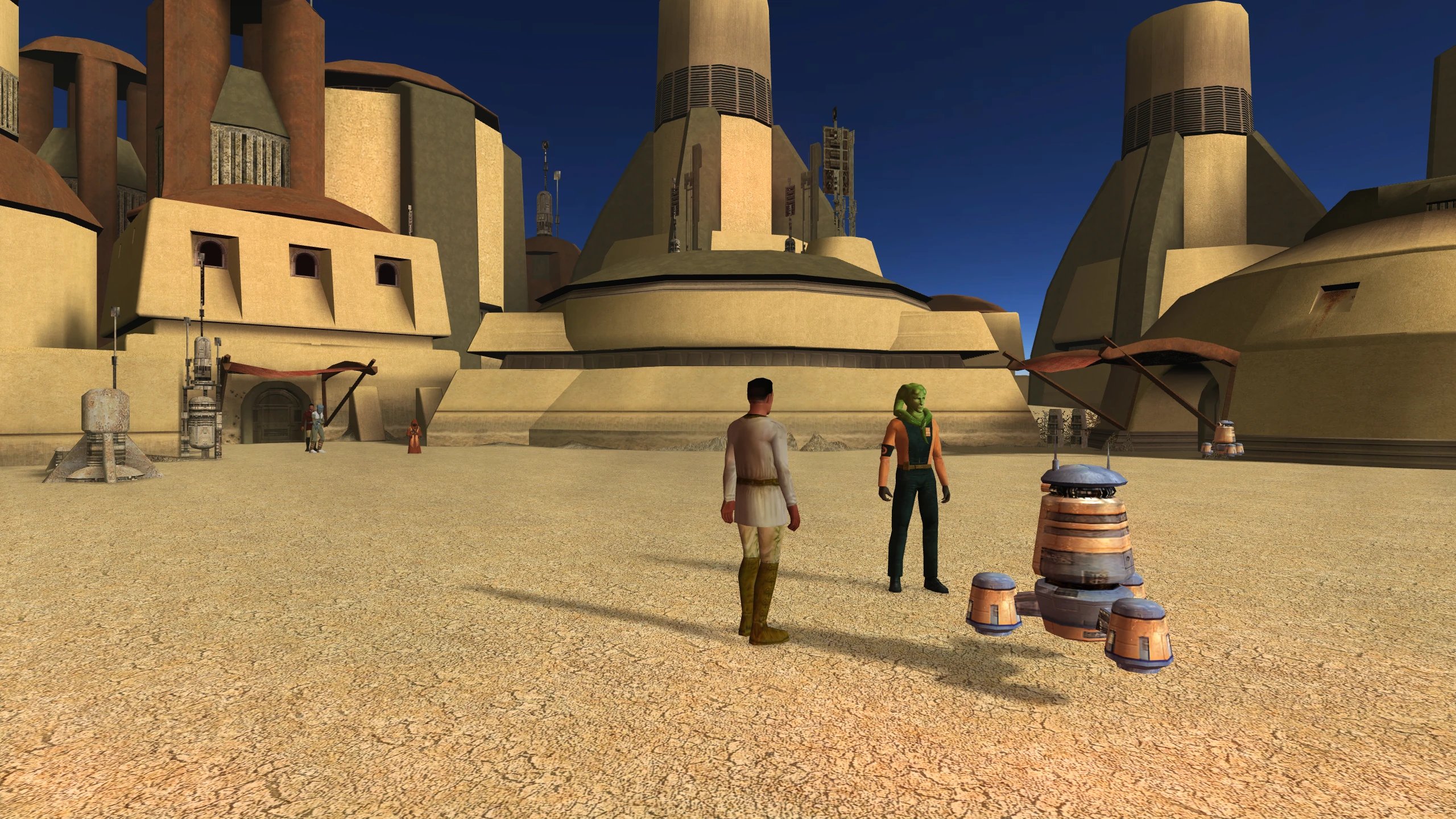
Without the patch: shadows have hard edges.
Cause: the game softens shadows by drawing them into an image off screen and blurring that image. It does this only when it uses one of its two shading methods. A separate check in the game also keeps soft shadows off unless the game’s own settings file allows them.
With the patch: soft shadows work on every card whose driver offers framebuffer objects, and the separate check no longer blocks them.
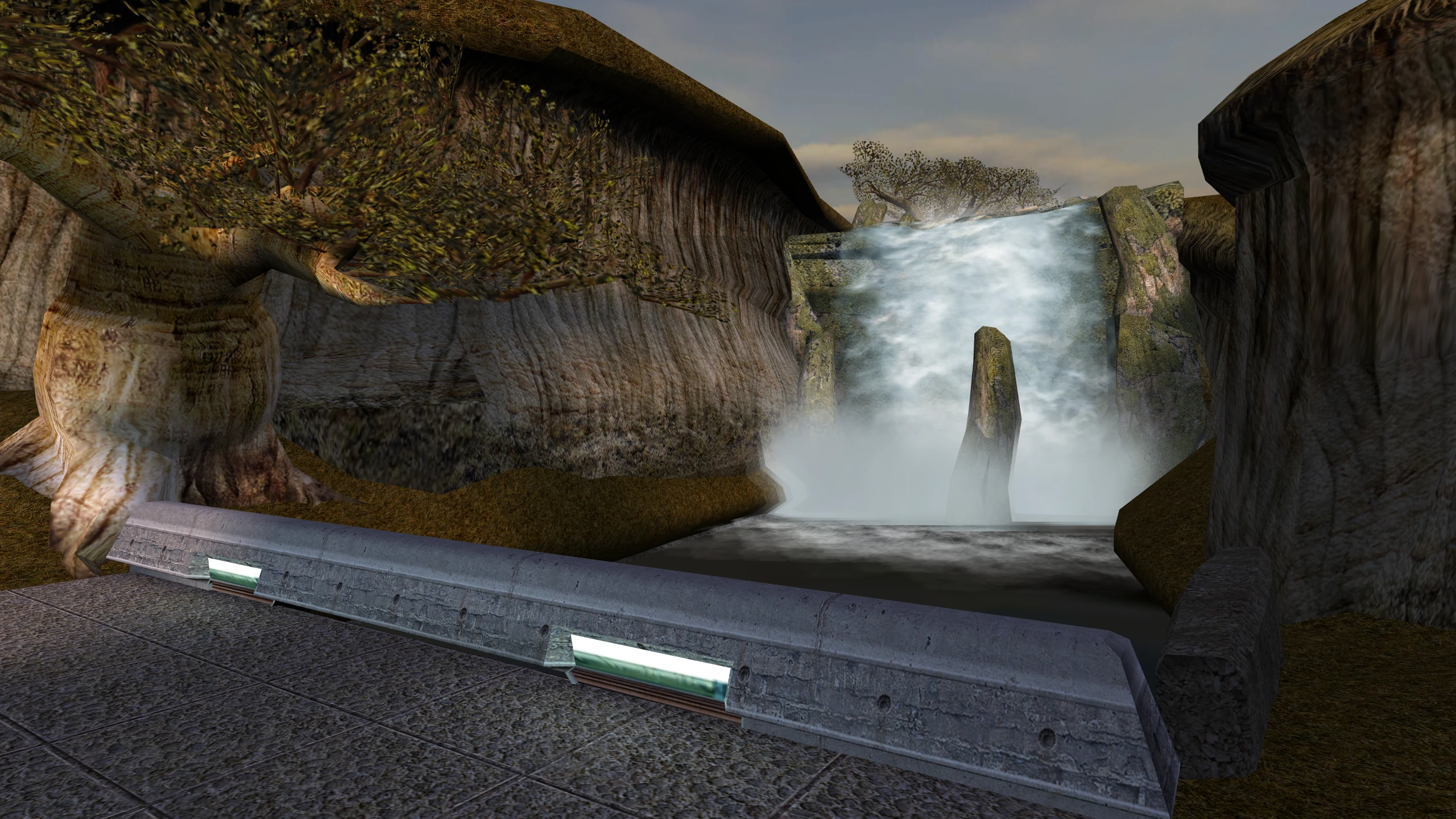
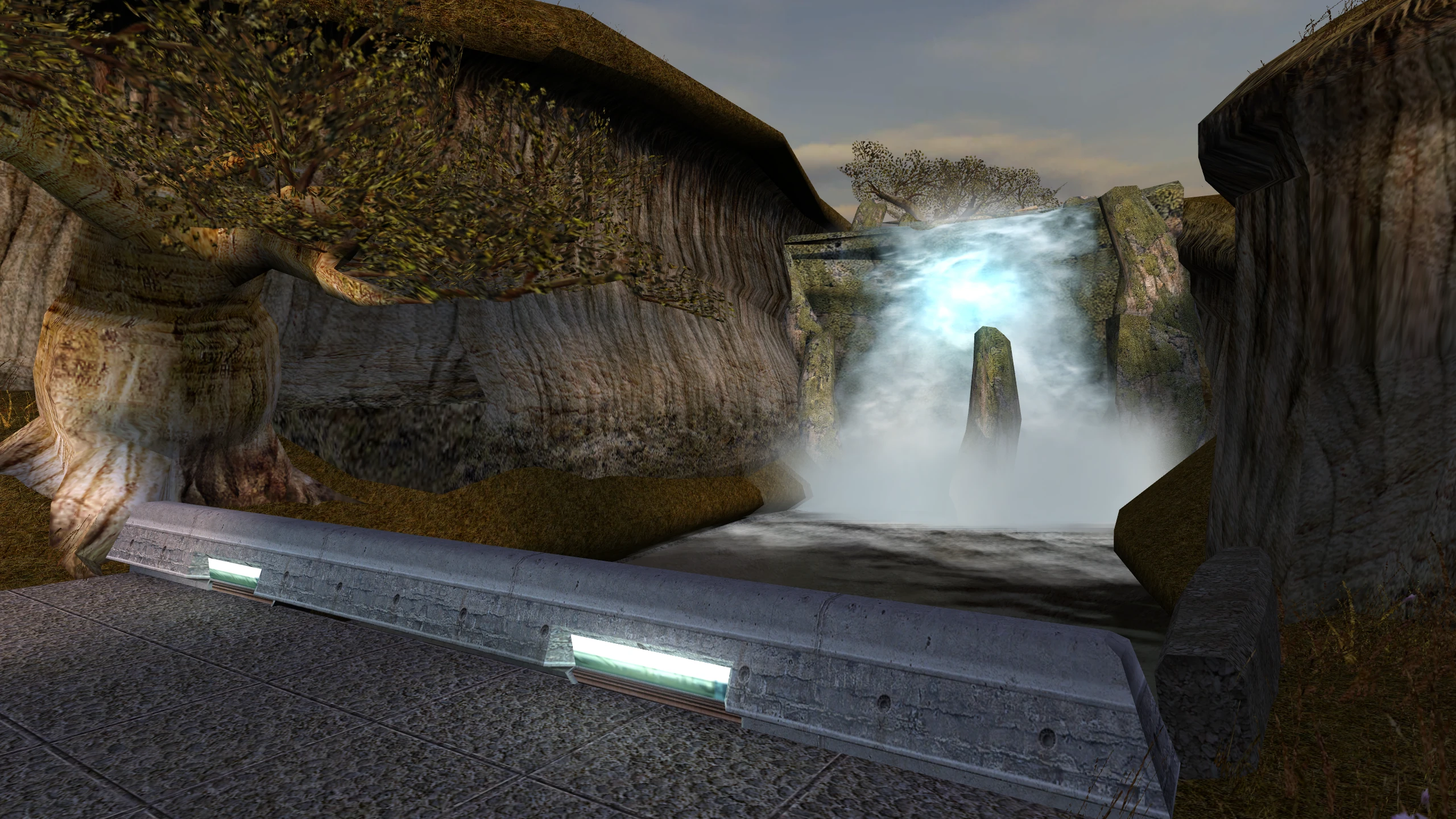
Glow and screen effects appear
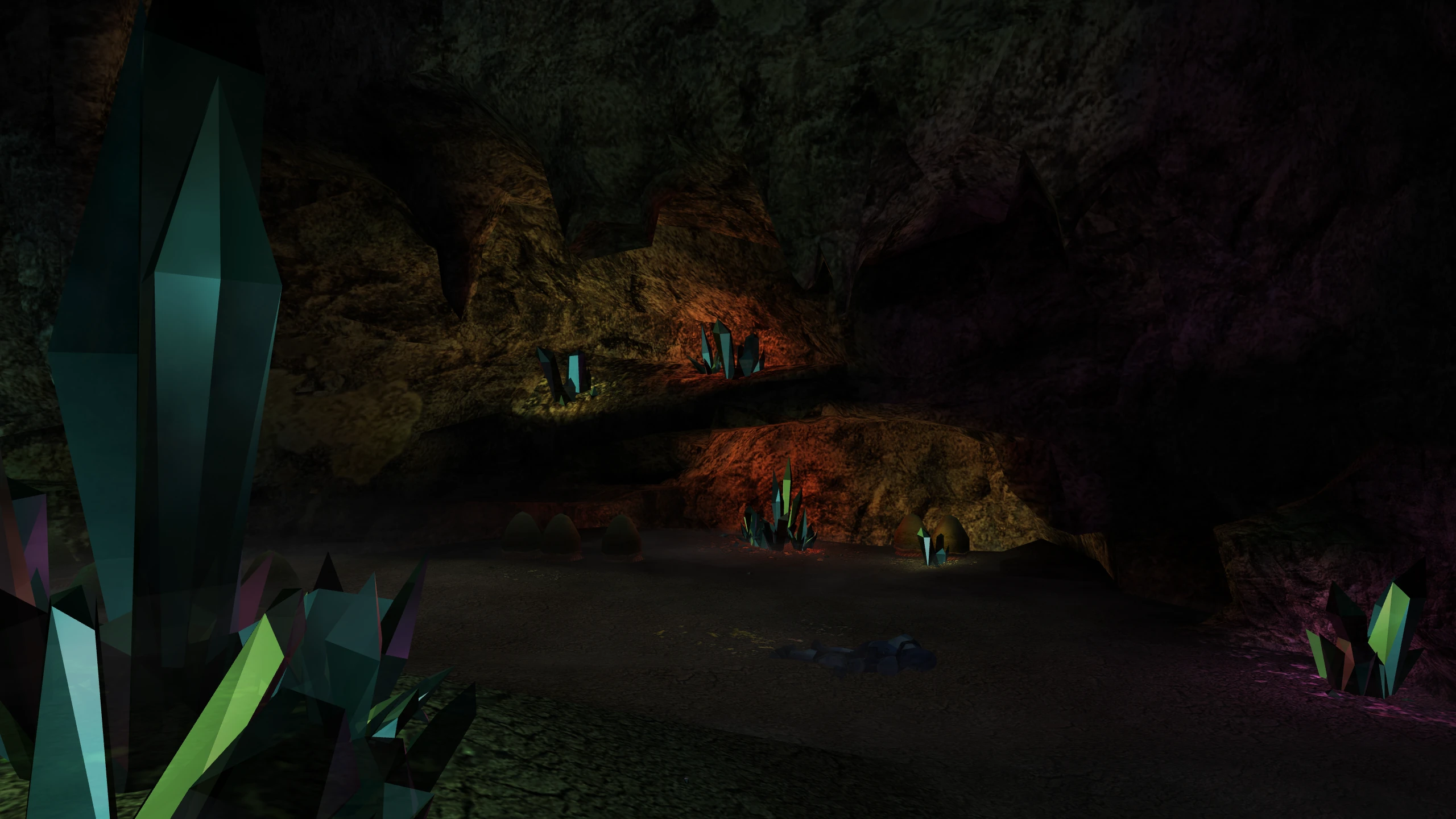
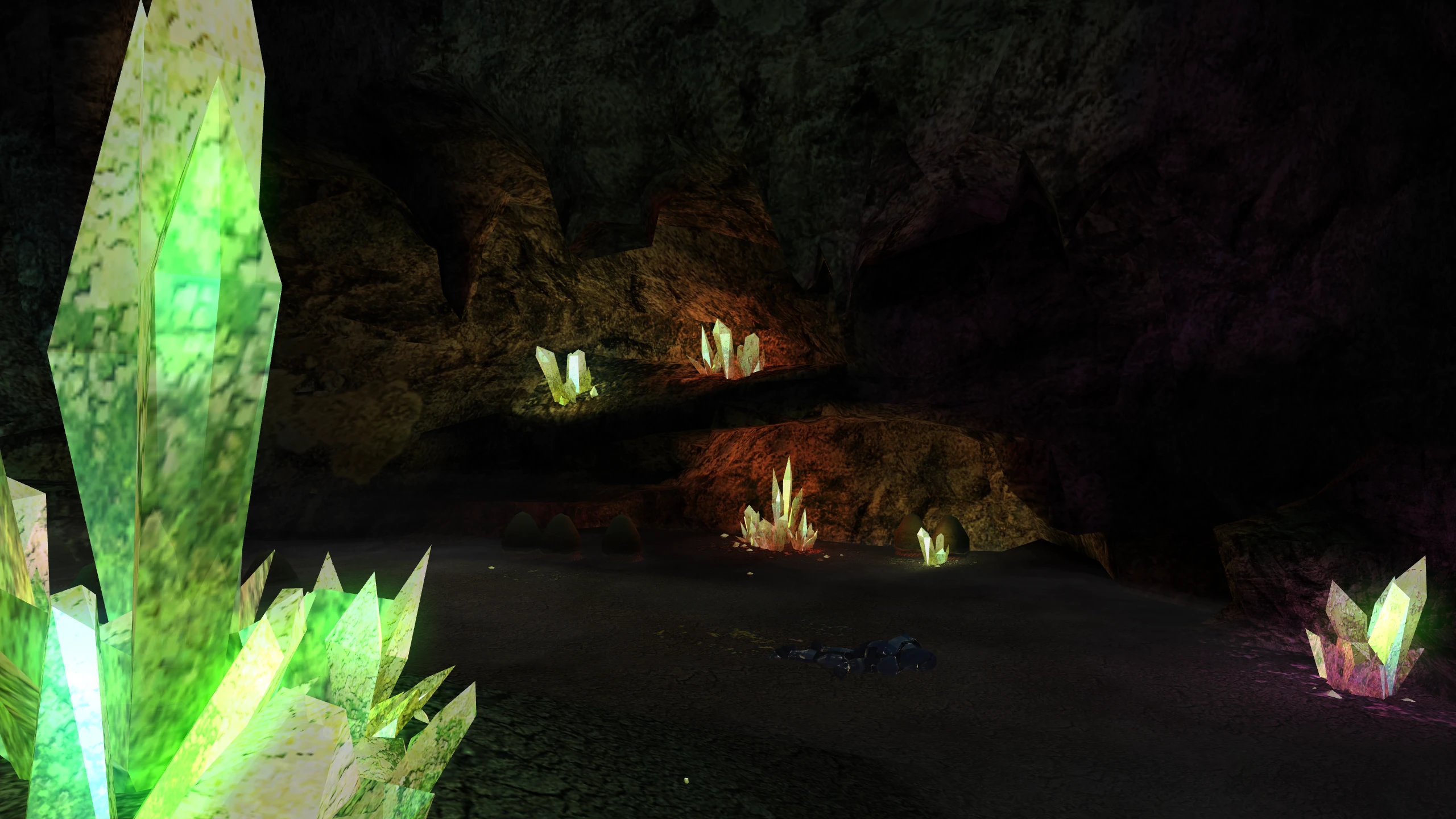
Without the patch: bright lights have no glow, and the game shows none of its screen effects: motion blur, film grain, the distortion around Force powers.
Cause: the game draws these effects into images off screen, the same way it draws soft shadows, and it does this only when it uses one of its two shading methods.
With the patch: the effects draw on every card whose driver offers framebuffer objects.
Glow and soft shadows hold still
Without the patch: on every card that draws them, the glow around lights and the edges of soft shadows flicker as the camera moves. The flicker is worse at higher resolutions, and small lights can lose their glow entirely.
Cause: to draw the glow and the soft shadows, the game first shrinks the whole screen into a small square. It does this by reading a scattered sample of the screen’s pixels, and the larger the screen, the more pixels it skips. As the camera moves, a small light or the edge of a shadow moves in and out of the sampled pixels.
With the patch: the patch shrinks the screen with a filter that takes every pixel into account, so the glow and the shadows stay steady at every resolution.
The brightness slider works
Without the patch: on some drivers, moving the brightness slider has no effect.
Cause: the game applies brightness by asking the display to use a brightness curve. A driver is allowed to refuse that request, and NVIDIA’s Windows driver refuses it.
With the patch: the patch applies the game’s brightness curve to the picture itself, including in cutscenes.
Choose between the two looks
The game’s two shading methods, ATI’s fragment shaders and NVIDIA’s register combiners, don’t
draw the game identically. The patch includes both versions, called looks, and you choose
between them with the look setting:
look = nvidia    the default
look = ati       what an ATI Radeon of the time showed
How the looks differ
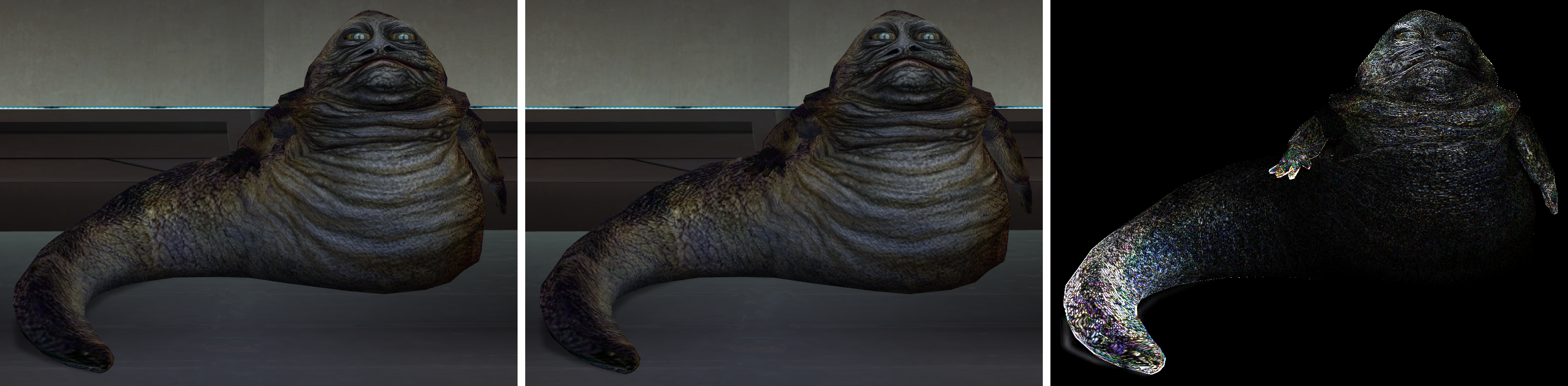
The looks differ in two ways. In the game’s own content both differences are small, and the comparison at the end of this page measures one of them.
Light that adds up past full brightness. Light can add up past full brightness where a lamp shines on a lightmapped surface, or where a reflection sits on top of a lit texture. ATI’s fragment shaders keep the excess and multiply it into the texture, so strong light washes the surface out towards white. NVIDIA’s register combiners limit every step to full brightness, so the same light looks softer. Where light stays under full brightness, which is most of the game’s own lighting, the two looks match.
Highlights on bumpy shiny surfaces. ATI’s fragment shaders square a value without first limiting it to zero or above, which puts a highlight on parts of a surface that face away from the light. The effect shows on bump lit creatures, such as the Hutts in the Taris cantinas, most on the parts that face away from the light. NVIDIA’s register combiners limit the value first, so the GeForce look has no highlight there. They also drop the highlight where the half vector, halfway between the directions to the light and to the viewer, points into the surface.
Neither difference is a bug in the patch. Each look follows its own method, and each carries corrections where the game’s own version was broken.
The Radeon look follows the game’s ATI shaders, except where an ATI shader computes something different from the game’s register combiner setup for the same surface. The combiner setup is what players saw, so the Radeon look follows it there:
- Reflections are added on top of the lit texture, not blended with it.
- Bump lighting keeps two results that the ATI shader computes and then throws away: the
squaring of the highlight, and the light colour. The Radeon look corrects both of its bump
lighting modes,
0x06and0x07, this way.
The GeForce look follows the game’s register combiner setups, with two repairs where the game never finished them:
- The setup for bump lighting with a normal map is unfinished: it computes the lighting in grey, with no texture and no light colour.
- The setup for bump lighting passes one of its inputs in a form that NVIDIA’s driver refuses, so the result depended on whatever an earlier draw left behind. The patch uses the input the game meant.
Rendering the game never ran
The patch also turns on rendering that the shipped game never ran on any card, for mods to use: normal mapped surfaces, bump lighting on lightmapped surfaces, and reflective skins with a flat reflection map. Lighting for mods works explains why they never ran. Nobody saw them drawn, so each look draws them by the same rules, and with the same corrections, as the rest of that look:
- Normal mapped surfaces use mode
0x07, which each look draws the way it draws0x06. - The game has no ATI shader for bump lighting on lightmapped surfaces, modes
0x08and0x09, so both looks use the game’s register combiner setups for them. - The repair for reflective skins with a flat reflection map is to a vertex program, which both looks share.
The default look
The default is the GeForce look, look = nvidia, which follows what NVIDIA’s register
combiners compute, with the two repairs. To use the Radeon look, set look = ati.
Settings explains where to put the setting.
Settings
You don’t need to change any settings to play. The settings help you narrow down the cause when something looks wrong.
Change a setting in the settings file
The patch reads its settings from K1DriverCompat.ini, in the same folder as swkotor.exe. The
patch creates this file the first time it runs, with every setting listed, explained, and
commented out.
- Open
K1DriverCompat.iniin a text editor. - Find the setting you want, and delete the
#at the start of its line. - Change the value, and save the file.
- Start the game.
The file has one setting per line:
look=ati
log=debug
The patch ignores blank lines and lines that start with #. You can write setting names and
the values on and off in any capitalisation, but the value of look must be lowercase. If a
line has a mistake, the patch still reads the rest of the file.
To confirm that the patch read the file, look for settings source=K1DriverCompat.ini near the
top of the log. The patch writes this line only when the file sets at least one setting.
Change a setting in the game
If you have the Mod Options patch installed, the game’s options screen has two menus for these
settings. K1 Modern Driver Compatibility has the settings for everyday use, and K1 Modern
Driver Compatibility: Troubleshooting has the settings for finding a fault. The menus change
K1DriverCompat.ini for you. A change to how much the patch writes to its log takes effect
straight away, and any other change takes effect the next time you start the game.
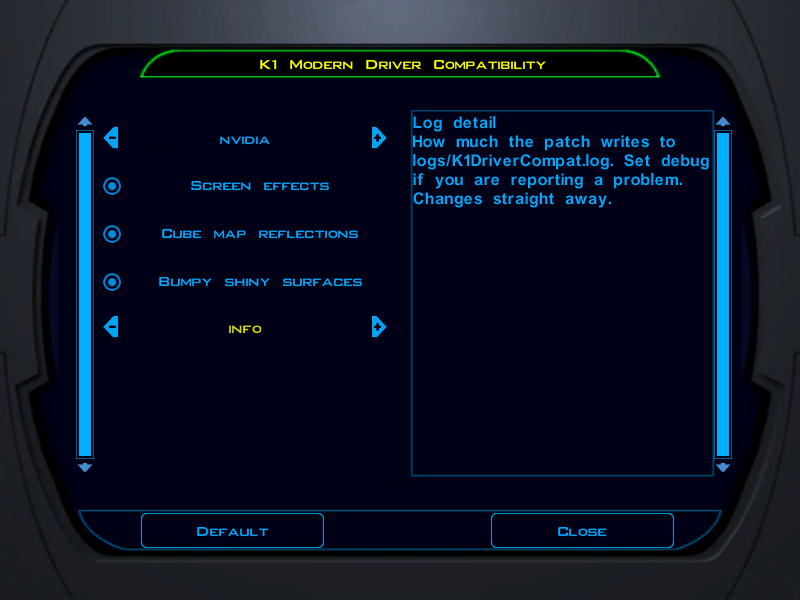
The patch writes the two menus into the Mod Options folder each time the game starts, when
Mod Options is installed.
A menu finds a setting in the file only below the [K1DriverCompat] line, and only when the
setting has no spaces around its =. If you edit the file by hand, write settings as the
examples in this page and in the file do.
A file written by a version before 2.0.0 has no [K1DriverCompat] line. The first time you
open a menu, Mod Options adds that line at the end of the file, with the menu’s settings at
their defaults below it. The patch reads the file from top to bottom, and a later line replaces an
earlier one, so those defaults replace any settings you made higher up. To keep your settings,
make them again in the menu.
Change a setting for one run
To try a setting once without editing the file, set an environment variable with the same name
and the prefix K1DC_, for example K1DC_LOOK=ati. If a setting is in both places, the
environment variable takes precedence.
Check that a setting took effect
If you mistype a value, the patch keeps the default and writes a warning to the log. The
exception is disable_modes: the patch skips any entry that isn’t a mode number, without a
warning.
To see which settings the patch used, find the settings line near the top of the log. It lists
every setting that isn’t at its default, including the modes in disable_modes.
Settings for everyday use
| Setting | Effect |
|---|---|
look=ati | Uses the Radeon look instead of the GeForce look. For more information, see Choose between the two looks. |
log=debug | Writes much more detail to the log. Set this if you’re reporting a problem. |
Settings for finding a fault
Most of these settings turn off part of the patch. If the problem goes away with one of them,
the part that setting turns off is the cause. warm and frames turn nothing off: they measure.
| Setting | Effect |
|---|---|
decline=on | Answers the game’s startup question with no, so the game takes the path it takes on a driver that offers neither of its shading methods. This isn’t the same as the unpatched game. For more information, see What decline=on leaves in place. |
framebuffer=off | Turns off the screen effects and soft shadows, and keeps the lighting. |
cubemap=off | Tells the game that cube maps are unavailable, so shiny surfaces use the simpler sphere map reflections. |
bump=off | Turns off bump mapping everywhere: the bump lighting on creatures and surfaces, and the reflections that a bump map bends. Bump mapped surfaces draw flat. |
disable_modes=18,1D | Stops shading particular kinds of surface. The next table lists the modes. |
warm=on | Measures how long your driver takes to prepare the shading programs. Use this to find the cause of a stutter. |
frames=on | Reports the frame rate and how much work the patch did, every 600 frames. When this setting is off, the patch doesn’t count frames. |
disable_modes takes a comma-separated list of mode numbers, as the log names them. The modes
line, which the patch writes when the game’s renderer shuts down, counts the draws of each mode.
With log=debug, the log also names each mode after mode= the first time it’s drawn.
| Mode | Surfaces |
|---|---|
1A | Lightmapped walls and floors, the most common kind |
02 | Flat coloured surfaces |
03 | Surfaces that fade towards a colour with distance |
13 | Reflective surfaces |
14 | Reflective surfaces that also fade into fog |
16 | Reflective surfaces that also have a lightmap, which use three textures |
18 | Reflective surfaces whose normal map bends the reflection |
1D | The setup of the six textures that mode 18 reads |
06 | Bump lighting, on creatures and on bump mapped surfaces |
07 | Bump lighting on surfaces whose bump map is a normal map |
08 | Lightmapped surfaces lit by a bump map light |
09 | Mode 08 with a highlight |
00 | The full reset between draws |
0D, 1C, 20, 25 | The cleanup after the bump, normalisation cube, reflective, and cube texture modes |
When you turn a mode off, surfaces of that kind draw incorrectly. If the fault you’re chasing disappears, it belongs to that kind of surface.
What decline=on leaves in place
decline=on isn’t the unpatched game. It answers only the game’s startup question. The
following parts of the patch stay active:
- The edits to the game’s code that change how the game looks for cube maps and soft shadows, and which branches it takes for bump mapped meshes and creatures, and the edits that remove game calls the driver refuses.
- The parts that answer the game’s normal map question, point the vertex programs of bump mapped surfaces and skins at the patch’s own, and correct the colour channels of TGA normal maps.
To compare with the unpatched game, uninstall the patch.
Why the game looked wrong
The problems on What the patch fixes share one cause: the game chooses how to draw when it starts, and on many current drivers it chooses its most limited path. This page explains that choice, which drivers lead to which path, and the grass bug in that path.
The game chooses a shading method at startup
KOTOR supports two ways of shading each pixel, one from each of the two big graphics vendors of its time: ATI’s fragment shaders and NVIDIA’s register combiners. Most of the game’s lighting, its reflections, the fog on its shiny surfaces, and its screen effects are written for both methods. Some lighting is written only for NVIDIA’s, as How the patch works describes.
When the game starts, it asks the driver whether it offers ATI’s fragment shaders. If it does, the game uses them. If it doesn’t, the game sets up NVIDIA’s path, and then uses each NVIDIA feature only where the driver offers the extensions that feature needs. Most of what the game draws follows from that choice.
Which drivers offer which method
The method the game uses depends on your driver:
| Driver | ATI’s fragment shaders | NVIDIA’s register combiners | Path the unpatched game uses |
|---|---|---|---|
| NVIDIA, on Windows or Linux | No | Yes | NVIDIA’s register combiners |
| Mesa, on Linux | Yes | No | ATI’s fragment shaders |
| AMD or Intel, on Windows | No | No | The path without pixel shaders |
If you play on Windows with an AMD or Intel card, the game has been using the path without pixel shaders. That path is where the problems the patch fixes come from.
Where this table comes from
- The NVIDIA row is an RTX 2070 on driver 610.57. Its compatibility profile lists
GL_NV_register_combinersand doesn’t listGL_ATI_fragment_shader. - The Mesa row is Mesa 26.2.4, on its radeonsi driver and on llvmpipe, its software rasteriser.
Both list
GL_ATI_fragment_shaderand don’t list the register combiners. - The AMD and Intel row comes from the logs of testers on that hardware.
The path without pixel shaders
The game also supports cards older than either method, which can’t shade per pixel at all. When the game finds neither method, its check for per-pixel shading fails for every surface, and it draws with the path it has for those cards. That path is missing the following:
- Light on lightmapped surfaces. A lightmap is the lighting stored in a level when the level was built. On this path the game draws the lightmap but turns lighting off while it draws the surface, so the lights in the room never reach it.
- Bump lighting, which needs per-pixel shading. Some bump mapped surfaces come out flat, and some come out black, such as the lekku of Twi’lek characters.
- One-pass reflections. On this path the game draws shiny surfaces in two passes without per-pixel shading. Armour and metal look flat and lose their detail, water loses its transparency, and parts drawn mostly by their reflection, such as HK-47’s eyes, can disappear.
- Soft shadows and screen effects. The game draws both only when it uses one of its two methods, together with other extensions it checks for.
- Fog that draws correctly. In some places, such as the Lower Shadowlands on Kashyyyk, the distance doesn’t fade into the fog.
- Grass that draws correctly. The next section explains why.
Why the grass breaks
The game has three ways to draw grass, and two of them have a bug.
To draw anything, the game tells the graphics card where in memory to find the corners of each shape. The two buggy ways give the card the location of the grass’s own bookkeeping instead of the positions of the blades. The card reads whatever values are there and uses them as positions. Those values aren’t positions, so the blades land wherever the values place them, depending on what is in memory at the time. Usually the blades stretch from the ground far into the sky. Sometimes they land out of view, and the grass is missing entirely.
The third way gives the card the correct location. The game uses it only when its check for bump mapping passes, which needs one of its two shading methods and several other extensions. NVIDIA’s drivers and Mesa each offer one of the methods, so grass draws correctly on them. AMD’s and Intel’s Windows drivers offer neither, so on those the game uses a buggy way, and “turn off grass” became the usual advice.
Technical details
CAurTriangleBin::RenderGrassPolys has three draw paths. Each path calls
GLRender::DrawLightmappedGrass, which passes its first argument to glVertexPointer. Two of the
paths pass the address of the bin’s own field at offset 0x40, so OpenGL reads the bin itself as
vertex coordinates:
- The first path, which the game takes when bit
0x08of the byte at offset0x02is clear, or whenrenderTextureGrassis clear. In the second case it also leaves the grass untextured. - The multitexture fallback, which the game takes when
aurATIFragmentShadersBumpMapAvailable()returns false andAurMultiTextureAvailable()returns true. When both return false, the game draws no grass.
The shaded path, at 0x004A6FFC, passes the blade buffer whose address is stored at offset
0x38.
aurATIFragmentShadersBumpMapAvailable depends on AurBumpMapAvailable. That function returns
true when the driver offers GL_NV_register_combiners together with GL_ARB_vertex_program,
GL_EXT_texture_cube_map, GL_ARB_multitexture, and GL_EXT_bgra, or when the game is on the
ATI path and uses ARB vertex programs.
Why the patch uses one path for every driver
On NVIDIA’s drivers and on Mesa, the unpatched game already uses a shaded path. On Mesa that is the ATI path, which leaves out the lighting that only NVIDIA cards drew. Each of those methods also depends on a single vendor or project continuing to support it. Register combiners are NVIDIA’s own extension, and Mesa doesn’t implement them. ATI’s fragment shaders aren’t offered by AMD’s own Windows driver. Leaving each driver on its own method means maintaining three paths, two of which depend on a single vendor or project.
Instead, the patch puts every card on one path, built on GL_ARB_fragment_program, which AMD’s,
Intel’s, and NVIDIA’s drivers and Mesa all carry. How the patch works explains
that path.
How the patch works
This page explains what the patch changes in the game, and how its replacements are checked against the game’s own. Each section ends with technical details for readers who work on the game or on the patch.
The patch answers yes, then supplies the method
When the game starts, it asks the driver whether it offers ATI’s fragment shaders. The patch
answers that question itself, and answers yes unless you set decline = on. The
game then takes its ATI path on every driver.
The patch then supplies everything that path needs. The patch skips the step where the game builds its ATI fragment shaders. The game keeps calling the functions it always calls, and the patch handles those calls: when the game selects one of its ATI fragment shaders for a draw, the patch binds its own replacement instead. A small number of edits to the game’s code change where the game looks for features and which branches it takes, and remove game calls that the driver refuses. The rest of the game runs unchanged.
If the driver offers GL_NV_register_combiners2, the patch also hides it from the game, so that
the game doesn’t run its NVIDIA path alongside the ATI one.
Technical details
The game tests for GL_ATI_fragment_shader once, in GLRender::InitExtensions, and its other
choices follow from that answer, so that test is the one the patch replaces.
The patch clears GL_NV_register_combiners2 from the game’s capability word because the game’s
NVIDIA gates for soft shadows and screen effects test for it. On a driver that offers it, the
game runs its NVIDIA versions of those effects beside the ATI path, and clearing it keeps those
gates closed.
To supply the ATI path, the patch takes over each place the game reaches for it:
EnablePixelShaders, the dispatch pointer the game calls to set up the shading for each draw, so that the patch chooses which of its programs to bind.- The ATI entries in the game’s extension table, through which the game binds its shaders and
sets their constants. The patch turns those into binds of its programs and writes to
program.env. glEnableandglDisable, because the game turns shading on and off by enablingGL_FRAGMENT_SHADER_ATI, which means nothing to a driver without the extension.glFogi, because each of the patch’s programs has its fog equation built in, so the patch watches which equation the game selects to bind the matching program.glFinish, which the game calls before every texture upload on the ATI path, as a workaround for ATI hardware of 2003. On Intel’s Windows driver each call blocks for over four seconds, and the game rebuilds every texture when the renderer restarts. Nothing depends on the call, so the patch drops it.- The pixel buffer entries,
wglMakeCurrent, andglDrawBuffer, which the game uses to switch between its off-screen images and the window. The patch’s off-screen images are framebuffer objects, so it translates those calls. SwapBuffers,SetDeviceGammaRamp, and Bink’sBinkCopyToBuffer, for the brightness slider, as The patch applies the brightness slider to the picture explains.
The patch replaces the game’s shading programs
The game’s per-pixel lighting is a set of small programs: one for each kind of surface and one
for each screen effect. The patch replaces each with a program in GL_ARB_fragment_program,
which AMD’s, Intel’s, and NVIDIA’s drivers and Mesa all carry. Each surface program comes in
four versions, one for each way the game draws fog, because on this path a program applies fog
itself. Three surface programs blend the game’s fog in their own code instead, so their four
versions are the same.
The patch adds two programs of its own: one applies the brightness slider, and one shrinks images for the glow and soft shadows.
Technical details
All fourteen world shaders and nine effect shaders are translated to GL_ARB_fragment_program.
An ATI fragment shader runs before the fixed function fog stage, so the game’s shaders got fog without doing anything. An ARB fragment program replaces that stage, and its own fog option doesn’t work for this game: the game measures fog distance as the absolute depth in front of the camera, and Mesa doesn’t take that absolute value for programs that use the option, so fog vanishes. So each world shader applies fog itself, and is built against each of the four fog equations: off, linear, exp, and exp2. Applying it in the program also gives the same result on every driver.
The tests compare each replacement with the game’s program
Each replacement is translated from the game’s own program, as the game builds it. The tests draw the game’s program and the replacement side by side, and require the two images to match: exactly with fog off, and within one step of rounding with fog on. Where the patch corrects the game’s program, as Choose between the two looks describes, the tests require the images to differ, and to match exactly once the correction is undone. The tests read the game’s programs from your copy of the game each time they run, so none of the game’s programs are stored in this repository.
The game’s programs come in two kinds, ATI’s and NVIDIA’s, and so do the patch’s, as the two looks. The tests compare the Radeon look with the game’s ATI programs on Mesa, which still runs them. They compare most of the GeForce look with the game’s register combiner setups on an NVIDIA driver, which still runs those.
Technical details
The game has no shader text: it builds each ATI shader at startup from a sequence of
construction calls. arbfp-differential reads those calls out of the executable and replays
them on Mesa, which still implements GL_ATI_fragment_shader, so each comparison is against
the game’s own shader on a real driver. The tests pass on Mesa’s radeonsi driver. Twelve world
shaders come from those calls. Modes 0x08 and 0x09 have no ATI shader, so the patch
translates them from their register combiner setups.
With fog off, both programs run through the same pipeline, so the tests require identical pixels. With fog on, the game’s shader takes its fog from the driver’s fog stage, and the patch’s program computes it. The two round to a byte by different routes, so the tests allow one step. The tests that are meant to fail differ by tens to hundreds of steps. The three programs that blend their own fog are compared with fog off only, because the game draws them with the fixed function fog turned off.
The NVIDIA comparison reads each mode’s register combiner setup out of the executable and
replays it on an NVIDIA driver. It can’t cover modes 0x03 and 0x14, because the game’s
NVIDIA dispatcher has no case for them: those two blend their own fog, which NVIDIA cards did in
the last combiner stage instead. It can’t cover 0x18 either, because NVIDIA’s version of that
mode is built on texture shaders, which the comparison doesn’t replay. It holds modes 0x06
and 0x07 to their setups as repaired, because the game never finished them.
The patch enables lighting that only NVIDIA cards drew
Some of the game’s lighting ran only on NVIDIA cards, so even an ATI card of the time didn’t show it. The patch enables it on every card.
The game draws bump mapped creatures and objects with bump lighting only when it uses NVIDIA’s method. These include the Hutts, the Rancor, and some of the turret minigame’s models. On every other card, ATI’s included, it draws them with their texture and no bump lighting. The patch sends them down the bump lighting branch on every card.
The bump branches can’t fade, so while a bump mapped creature or head fades out, the patch sends it down the game’s plain branch, which fades with the rest of the body.
Technical details
Each NVIDIA-only branch is chosen by a call that asks which path the game is on. The patch answers those calls, and leaves every other use of the answer as the game wrote it.
In PartTriMesh::GetRenderPath, the answer to getATIFragmentShadersDisabled chooses between
path 5, RenderBumpMapped, which dispatches mode 0x06, and path 6, which draws the mesh with
its texture and no bump lighting. An edit makes the function return path 5.
In RenderSkinnedVP, the patch answers AurBumpyShinyAvailable and three calls to
getATIFragmentShadersDisabled from whether the skin is fading. The bump branches draw with
blend modes such as (GL_ONE, GL_ZERO), which ignore the skin’s alpha, so a fading skin stays
solid on those branches. The fade arrives through matLastAlpha, which PartTriMesh::Mat sets
just before each part is drawn.
k1_sys::arm lists every call that asks which path the game is on, and how the patch answers
each one.
The patch repairs lighting that no card drew
Some of the game’s lighting never worked on any card, NVIDIA’s included, because of bugs in the game. The shipped game uses almost none of it, but mods can:
- Bump lighting on lightmapped surfaces. Two lighting modes exist only as NVIDIA register combiner setups, with no ATI version. Their vertex programs are written in a format that only NVIDIA’s drivers read, and the game adds code to them that no driver accepts, NVIDIA’s included, so those surfaces draw nothing. The patch translates both modes, and builds their vertex programs from the developers’ own conversion of a related program. In the shipped game, only a test model that no level loads uses these modes.
- Normal mapped surfaces. The game has a route for normal maps on meshes without tangents, but the function that enables it always returns false. The patch answers that function instead, and repairs the vertex program that the skinned version of that route uses. It also corrects TGA normal maps, whose colour channels the game’s loader swaps. No mesh in the shipped game has a normal map.
- Reflective skins with a flat reflection map. Their vertex program exists only in NVIDIA’s format, so those skins vanished. The patch builds the program from the developers’ conversion of the cube map version. In the shipped game, only a test model uses this route.
Technical details
The lightmapped bump renderers build their vertex programs from !!VP1.0 text, NVIDIA’s format,
append the ARB light code that the game adds to every lit program, and load the result through
glProgramStringARB. NVIDIA’s driver accepts the !!VP1.0 text alone, but rejects it with the
light code appended, and Mesa rejects the text outright. So no card drew these surfaces.
The developers converted a related program to ARB themselves, at 0x0078E8C8. Its registers and
its hookup for the appended light code are what the rest of the game expects, so the patch builds
each replacement from it and changes only what differs. This repository holds none of the game’s
text, so the patch makes those changes at runtime, to the game’s own copy in memory. It swaps
each replacement in where the renderer stores the program it has just built, before the
renderer first enables it.
The same mechanism repairs three of RenderSkinnedVP’s vertex programs:
- The sphere map program exists only as
!!VP1.0text. It also reads its sphere coordinates from the wrong register and never normalises the reflection. The patch builds it from the developers’ conversion of the cube map version at0x007938C8, with the cube lookup replaced by the fixed function stage’s sphere map formula. - The normal map program subtracts each bone’s translation from the light and half vectors,
which are directions that a translation doesn’t move. It weights one term by the wrong bone,
and writes the normal map’s coordinate where mode
0x07doesn’t read it. The patch corrects each of these. - The bump light program doesn’t write the primary colour or the fog coordinate. Mesa reads an
unwritten primary colour as white, which mode
0x06adds to the light, so the skin’s texture was drawn whole and then added again.
k1_sys::vertex::builds lists every vertex program the game builds and enables, and a test
compiles each one that a draw can use, so a program that no driver accepts can’t go unnoticed.
The patch answers Material::HasNormalMap at all three of its calls, because they have to agree.
The call in MdlNodeTriMesh::InternalPostProcess decides at load whether to skip building
tangents for a mesh. The calls in PartTriMesh::GetRenderPath and RenderSkinnedVP send a mesh
without tangents to path 15, RenderNormalMapped, and to the skinned normal map branch, both of
which draw with mode 0x07. The answer is the game’s own test for a normal map: an isbumpmap 2
texture at 32 bits per texel.
The game’s TGA loader swaps the first and third byte of every texel to make RGB, and the normal map upload reads the data as BGRA, so the X and Z of every normal traded places. The patch swaps them back in the copy that the upload reads, which the mipmaps are built from as well.
Modes the patch leaves unshaded
NVIDIA’s dispatcher shades more modes than ATI’s. The patch shades the ones that a route can
reach once a shading method exists, and leaves the rest doing nothing, as ATI’s did. A mode that
does nothing has to stay that way, because binding something there takes the shading away from
the draw that follows it.
arbfp_dispatch::mode::inert_on_purpose gives the reason for each:
0x01,0x0F, and0x12areRenderBumpMapped’s passes for hardware without pixel shaders. That function runs only at a level of hardware that always has them.0x15isRenderNV1xEMLM, path 9, which the game chooses only below that level.0x0Aand0x0Bare specular exponents that the game never sets.0x22is skinned motion blur, which nothing in the game turns on.
Mode 0x17, skinning on the CPU, is the fallback for a skin drawn without a scene, which hasn’t
been seen to happen. It has no stated reason, so the patch logs a warning if it ever arrives. The
game never sends 0x04, 0x05, 0x0E, 0x10, 0x11, 0x19, 0x1B, or 0x1F, although
NVIDIA’s dispatcher has a case for each. k1_sys::dispatches lists every call that sends a mode.
The game’s ATI dispatcher does nothing for mode 0x1C, the teardown after 0x1D. ATI’s 0x1D
sets up cube maps on units 0 to 5, and the bump teardown, 0x0D, clears only units 1 to 3, so
cube maps stayed enabled on units 4 and 5 into later draws. NVIDIA’s fixed function stage stops
at four units, so only drivers with more, such as Mesa, ever had the problem. The patch’s 0x1C
clears units 4 and 5.
The screen effects draw into framebuffer objects
The game drew its glow, soft shadows, and screen effects into pixel buffers, an older kind of off-screen image. Modern drivers handle pixel buffers inconsistently, which is why those effects behaved differently from one machine to the next. The patch draws them into framebuffer objects, the modern equivalent.
The glow and the soft shadows each start by shrinking the screen into a small square. The game did this by reading a scattered sample of the screen’s pixels, which made the effects flicker as the camera moved. The patch shrinks the screen with a filter that takes every pixel into account, and stores the small images at a higher precision, so rounding doesn’t bring the flicker back.
Technical details
The off-screen targets use GL_RGBA16 where the driver can render to it, and eight bits per
channel, which is what the pixel buffers had, where it can’t.
RenderOverlayConvolution and FinishSoftShadowsATI draw the screen into a 512 by 512 square
with one bilinear read per texel, which past a ratio of two to one skips pixels. MipmapFilter
then halves the glow’s square to 64 by 64 with one read at exactly two to one, which averages
fixed pairs and steps the same way. Just before the game draws each square, the patch draws it
itself through a chain of DOWNSAMPLE steps that weight each source pixel by a triangle one
output pixel wide on either side, so every screen pixel counts. It then turns colour writes off,
so that the game’s own quad leaves the result alone. The halving steps bind the downsample in
place of the decal shader.
The glow’s bright pass is a threshold, so it runs on each screen pixel before any averaging. That way a small light stays above the threshold at high resolutions, and keeps its glow.
The patch applies the brightness slider to the picture
The game applied brightness by asking the display to use a brightness curve, which a driver can ignore. The patch keeps the curve the game asked for and applies it to the finished picture, and to movies as they are decoded.
Technical details
CAurInternal::ResetGammaRamp turns the slider position into a pow(i / 255, gamma) table and
passes it to SetDeviceGammaRamp. The patch takes over that import: it keeps the table, and
passes a flat table to the display so that the display applies nothing. The patch then applies
the table to each frame as a dependent texture read in a pass at SwapBuffers. It applies the
table to movies in BinkCopyToBuffer, because PlayMovieLoop copies each movie frame straight
to the window, and UpdateScreen skips the swap while a movie plays.
The patch runs the same path on every card
The patch doesn’t check which card you have. It replaces the game’s shading even where the game’s own path works, on NVIDIA and on Mesa, so every player runs the same code, and that code is the code everyone tests.
Replacement shaders
This page is for modders who want to change how the game looks by writing their own shading programs. You don’t need it to play.
You can put your own shader files in the game folder, and the patch uses them in place of the programs it generates. You don’t need to rebuild anything or use any tools. Each file is plain text in ARB fragment program assembly, the same language the patch’s own programs use.
Where replacement files go
Put replacement files in override/shaders/ in the game folder. If the folder doesn’t exist,
create it.
The folder is inside override so that a mod can install replacement shaders with
TSLPatcher, like any other override file. The files are in a subfolder because they aren’t game
resources. The game never reads them: it searches override for the file types it knows, it
doesn’t search subfolders, and .arb isn’t one of its file types. Only the patch reads them.
How to name a replacement file
Each file replaces one program and is named after it:
- World shaders, which draw surfaces, take a fog variant:
<name>_<fog>.arb, where<fog>isoff,linear,exp, orexp2. - Effect shaders, which draw screen effects, are named
<name>.arb. Fog never reaches screen effects, so they have no fog variants. brightness.arbapplies the brightness slider to the finished frame. It reads the frame on texture unit 0 and the slider’s curve on unit 1, with one texel for each byte value.downsample.arbshrinks the images for the glow and soft shadows. It reads the larger image on texture unit 0, and the values thatDownsample::localsdescribes fromprogram.local[0]toprogram.local[3].
The patch ignores capitalisation in file names, so a file named on Linux loads on Windows, and the reverse.
The program names are:
flat                 diffuseBlend          lightmap          envMap2D
envMapCube           envThreeTex2D         envThreeTexCube   envMapBlend2D
envMapBlendCube      normalTransform       bumpShinyA        bumpShinyB
lightmapBumpDiffuse  lightmapBumpSpecular1

overbrighten         forceDistortion       filmNoise         accumulationBlur
saturation           perPixelFlare         decal             decal4
softShadow

brightness           downsample
These are the names the log uses. To find the program a surface uses, set log = debug. The log
then records each world program and fog variant the first time the patch binds it, and each
effect program the first time the game uses it. For example, a line that contains
probe mode=1A shader=lightmap fog=Linear means that the file to write is lightmap_linear.arb,
and a line that contains probe effect=filmNoise means filmNoise.arb.
What a replacement file contains
Each file is a complete program, from !!ARBfp1.0 to END. The patch adds nothing to it. In
particular, each world shader variant applies fog itself, which is why there are four variants.
If you replace a fogged variant, your program must apply the fog, or that surface stops fogging.
Three world shaders are an exception: diffuseBlend, envMapBlend2D, and envMapBlendCube
already fade towards the fog colour in their own code, as the game’s programs do. All four
variants of each are the same program, without the fog step in the following example. The game
turns the fixed function fog off while it draws these three, so only the _off variant of each
ever runs. If you replace one of those three, write <name>_off.arb and leave fog alone, or the
surface fades to the fog colour twice.
This is the generated lightmap_linear.arb for the Radeon look. The last five instructions apply
the fog:
!!ARBfp1.0
PARAM fogParam = state.fog.params;
PARAM fogColour = state.fog.color;
TEMP fogCoord, fogFactor;
TEMP oCol;
TEMP base, lmap, sum;
TEX base, fragment.texcoord[0], texture[0], 2D;
TEX lmap, fragment.texcoord[1], texture[1], 2D;
ADD sum, fragment.color.primary, lmap;
MUL oCol.rgb, base, sum;
MUL oCol.a, fragment.color.primary, base;
ABS fogCoord.x, fragment.fogcoord.x;
SUB fogFactor.x, fogParam.z, fogCoord.x;
MUL_SAT fogFactor.x, fogFactor.x, fogParam.w;
LRP result.color.rgb, fogFactor.x, oCol, fogColour;
MOV result.color.a, oCol;
END
In the GeForce look, the default, ADD is ADD_SAT. That is the only difference between the
two looks in this program.
The text of every world and effect program for the Radeon look is in the repository, in
crates/arbfp-shaders/tests/golden/.
A replacement is easiest to start from the program it replaces.
Programs that differ between the two looks
Nine programs differ between the two looks:
lightmap,envThreeTex2D,envThreeTexCube,envMap2D,envMapCube,envMapBlend2D, andenvMapBlendCubelimit a step that can pass full brightness. This is the brightness difference that Choose between the two looks describes.bumpShinyAandbumpShinyBlimit two dot products to zero or above, as the register combiners do, before the highlight is squared. Without that limit, a negative value becomes positive when squared, and lights the side of a surface that faces away from the light. The Hutts in the Taris cantinas show this difference, most on the parts that face away from the light. The GeForce versions also drop the highlight where the half vector points into the surface.
Every other program is the same in both looks. This includes lightmapBumpDiffuse and
lightmapBumpSpecular1: the game has no ATI version of those modes, so both looks use the
translation of the register combiner setup.
A replacement file replaces its program in both looks, because file names don’t include the look. To keep one look’s behaviour for one of the nine programs, write the replacement from that look’s version.
What your program receives
A replacement changes only the program text. The patch binds the same textures and sets the same constants as for its own program.
Your program receives two kinds of input:
- Textures, on numbered texture units. Read them with
TEX dst, fragment.texcoord[n], texture[n], 2D, orCUBEor1Dfor those targets. - Values the game computes for each draw, as
program.env[n]. Your program can read these but not write them.
World programs:
| Program | Texture units | program.env[n] |
|---|---|---|
flat | None | None |
diffuseBlend | 0 diffuse | [1] colour to blend towards |
lightmap | 0 diffuse, 1 lightmap | None |
envMap2D | 0 diffuse, 1 environment | [0].a output alpha |
envMapCube | 0 diffuse, 1 environment (cube) | [0].a output alpha |
envMapBlend2D | 0 diffuse, 1 environment | [0].a output alpha, [1] blend colour |
envMapBlendCube | 0 diffuse, 1 environment (cube) | [0].a output alpha, [1] blend colour |
envThreeTex2D | 0 diffuse, 1 lightmap, 2 environment | [0].a output alpha |
envThreeTexCube | 0 diffuse, 1 lightmap, 2 environment (cube) | [0].a output alpha |
normalTransform | 0 normal map, 1 to 3 basis (cube), 4 refinement (cube), 5 environment (cube) | [0].a output alpha |
bumpShinyA | 0 normal map, 1 to 2 basis (cube), 3 modulating | [0], [1] light colours |
bumpShinyB | 0 modulating, 1 normal map, 2 to 3 basis (cube) | [0], [1] light colours |
lightmapBumpDiffuse | 0 normal map, 1 light vector (cube), 2 lightmap, 3 diffuse | [1] light colour |
lightmapBumpSpecular1 | 0 normal map, 1 half vector (cube), 2 lightmap, 3 diffuse | [0] light colour |
Effect programs, each of which shades a rectangle that covers the screen:
| Program | Texture units | program.env[n] | Output alpha |
|---|---|---|---|
overbrighten | 0 frame, 1 to 3 tone curve tables (1D) | [0] to [2] colour matrix rows | Primary colour alpha |
perPixelFlare | 0 frame, 1 to 3 tone curve tables (1D) | [0] to [2] colour matrix rows | 1 |
forceDistortion | 0 normal map, 2 frame | None | Normal map alpha |
filmNoise | 0 frame, 1 noise | None | 1 |
accumulationBlur | 0 frame, 1 accumulation buffer | [0], [1] weights | [0].a |
saturation | 0 frame | [0] to [2] luminance rows, [3] to [5] weights for each channel | Frame alpha |
decal | 0 frame | None | 1 |
decal4 | 0 to 3, four samples of the frame | [0] to [3] sample weights | Primary colour alpha |
softShadow | 0 to 3, four samples of the frame | [0] to [3] sample weights | The weighted sum’s alpha |
Inputs to check
- Name the texture target that is bound. Each
TEXinstruction names the target it samples, and the wrong target isn’t a compile error. The tone curve tables on units 1 to 3 ofoverbrightenandperPixelFlareare1D, not2D. If you name2D, the program samples an incomplete target, and several drivers return white. The same applies to everyCUBEin the preceding tables, which is why the environment mapped programs come in2DandCubepairs. The brightness curve on unit 1 ofbrightnessis1Das well. - In the reflective programs, the alpha of the diffuse texture is the reflectivity mask. An alpha of 1 keeps the lit texel, and 0 shows the reflection.
forceDistortionreads the frame on unit 2, not unit 0. Unit 0 is the normal map, andfragment.texcoord[1]andfragment.texcoord[2]are the basis vectors it takes dot products with.- Write the alpha the original writes. The game blends many draws by the alpha a program
writes, so a replacement that writes a different alpha changes how its surface or effect
blends, and can stop a surface fading. The effect table gives the alpha each effect writes,
and the world table marks the programs that take theirs from
program.env[0].a. For the rest, read the alpha from the patch’s own version of the program. - The interpolated colours are inputs too.
fragment.color.primaryis the lit vertex colour, andfragment.color.secondary.ris the amount the blend modes fade by. In the two lightmapped bump programs, the secondary colour is the light’s attenuation.
Check that your replacement loaded
When the patch loads a replacement, it writes a line like this to the log:
[ 0.412] [INFO] program override envMapCube_linear.arb
If a file’s name doesn’t match any program, the patch writes a warning instead. A misnamed replacement looks the same as no replacement in the game, so this warning is how you find one:
[ 0.412] [WARN] program override envMapCube.arb matches no program and was ignored
If the driver refuses to compile a replacement, the log reports the position where compiling stopped and the driver’s message. The patch doesn’t fall back to its own program. What happens instead depends on the program:
- A refused world program leaves the surfaces that use it drawn without shading.
- A refused effect program leaves that effect without a program.
- A refused
brightnessprogram leaves the frame without the brightness pass. - A refused
downsampleprogram leaves the glow and soft shadows to the game’s own shrink.
Known limitations
overbrightenis never used. The game uses it only when a flag at0x007A68BCis set, and nothing in the game sets that flag. A replacement foroverbrightenhas no effect.bumpShinyBdraws only normal mapped surfaces, whose bump map is anisbumpmap 2texture at 32 bits per texel, on meshes without tangents. The game reaches it throughMaterial::HasNormalMap, which every build of the game compiles to return false. The patch answers that function, so the program runs for such a mesh. No mesh in the shipped game has a normal map, so a replacement forbumpShinyBshows only on mod content.lightmapBumpDiffuseandlightmapBumpSpecular1draw only lightmapped bump mapped surfaces. In the shipped game, only a test model that no level loads has one, so a replacement for either shows only on mod content.- Only the
offandlinearfog variants have been seen in play. The patch still builds and tests theexpandexp2variants.
Programs from other games
These programs aren’t the game’s own shaders. They’re translations of the game’s
ATI_fragment_shader constructions and register combiner setups, so they expect this game’s
texture units and constants, as the preceding tables list them. A program written for another
game, including KOTOR 2, needs remapping to those inputs before it renders correctly here.
Building
This page explains how to build the patch and run its tests. To play, download the zip file from
the releases page, which contains the .kpatch, and follow Installing.
Build the patch
The patch is a 32-bit Windows DLL. You can build it on any machine, natively or by cross compiling, if you have the Rust target and a linker for it. If your machine doesn’t already have a linker for that target, install MinGW-w64.
-
Add the Rust target:
rustup target add i686-pc-windows-gnu -
Build the DLL and write the
.kpatch:cargo xtask package
To build the zip files that a release publishes, run cargo xtask release for the standard
install and cargo xtask release --standalone for the standalone install. The minimum Rust
version is in rust-version in the workspace’s Cargo.toml.
Run the tests
The tests check the patch’s shading programs against the game’s own programs, which they read from a copy of the game’s executable each time they run. This repository stores nothing from the game, so the tests that need the game skip unless you point them at your copy:
K1DC_SWKOTOR_EXE=/path/to/swkotor.exe cargo test
Which tests run on which driver
The tests that compare with the game’s ATI programs need a driver that still runs
GL_ATI_fragment_shader, which means Mesa or an older AMD/ATI driver. They render the
game’s program and the patch’s in the same process and compare the images pixel for pixel. 7
These tests pass on Mesa’s radeonsi driver.
You can also run them without a GPU on llvmpipe, Mesa’s software rasteriser, by setting
LIBGL_ALWAYS_SOFTWARE=1. On llvmpipe, one comparison fails: accumulationBlur rounds one step
differently from the game’s program on about 6% of the pixels.
The tests that compare with the game’s register combiner setups and NVIDIA vertex programs need NVIDIA’s driver, the only driver that still runs them.
Make skipped tests fail
A test that can’t run on your machine skips, and a skipped test counts as a pass. No single machine runs every test, because the ATI comparisons need Mesa and the NVIDIA comparisons need NVIDIA’s driver.
To make sure the tests your machine can run do run, list what your machine has in K1DC_REQUIRE,
separated by commas. A test that skips for lack of a listed item then fails instead. For example,
on a Mesa machine:
K1DC_REQUIRE=game,context,framebuffers,texture-units,GL_ATI_fragment_shader,GL_ARB_vertex_program \
K1DC_SWKOTOR_EXE=/path/to/swkotor.exe cargo test
On NVIDIA’s driver, remove texture-units and GL_ATI_fragment_shader, and add
GL_NV_register_combiners and GL_NV_vertex_program.
Compare images
Most comparisons write an image to target/differential/, whether they pass or fail. Each
image shows the game’s program, the patch’s program, and the difference between them, amplified
so that a difference of one step is visible.
Test both looks
The tests on Mesa check the Radeon look, look = ati. The tests on NVIDIA’s driver check the
GeForce look, look = nvidia, which is the default. If you change one of the
programs that differ between the looks,
run the tests on both drivers.
Build this documentation
The chapters are Markdown files in docs/, which you can read directly.
mdBook builds them into a website in target/book:
mdbook build docs
To rebuild the website each time you save a change, and view it at http://localhost:3000:
mdbook serve docs